MailerLite Shopify Integration: Sync Subscribers, Orders and Checkout Emails
Connect the current MailerLite app to Shopify, select an opted-in subscriber group and verify purchase workflows without confusing abandoned cart with abandoned checkout.
Choose one useful email outcome for your Shopify store
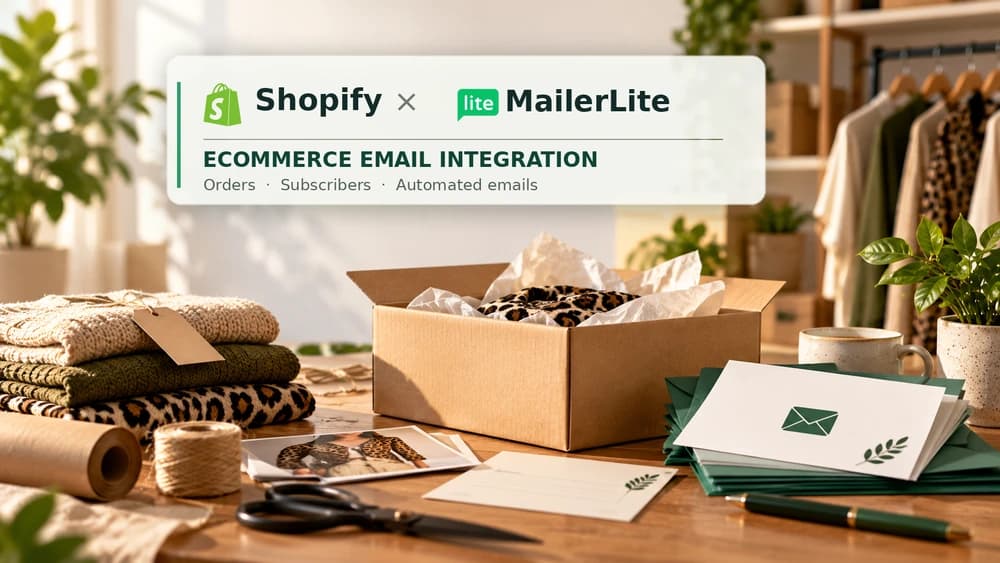
Connecting MailerLite to Shopify lets approved customer and order data reach an email-marketing platform. The integration can support newsletters, e-commerce reporting, product blocks and selected automation triggers. It is not a replacement for Shopify checkout, and it does not authorize you to market to everybody who has ever bought an item.
Imagine a small homewares shop that wants to send its opted-in customers useful product-care instructions and occasional new-arrival emails. That is a practical example, not a tested MailerLite account. Define the audience, the promised message and the consent route before looking for more complicated automations.
Install the current MailerLite Email Automation app
From the Shopify admin, open Apps and locate MailerLite Email Automation by MailerLite. Verify the app publisher and confirm the Shopify installation prompts. The current MailerLite guide then asks you to Connect, log in to your MailerLite account and authorize access. Review requested permissions before granting them.
Some old tutorials use MailerLite Legacy (Classic) and describe entering an API key in a differently named plugin. Avoid following those screens if you use the current platform. Once connected, check the E-commerce area of the account settings for your store URL and integration status before building campaigns.
Connect the right subscriber group and consent scope
The integration asks which MailerLite group will hold Shopify customers. It can synchronize everybody technically, or only customers who have accepted marketing. For an email list designed for campaigns, choose consent-based synchronization rather than treating every purchase record as a marketing subscription.
MailerLite's terms and setup help clearly state that e-commerce automations require marketing permission. An imported customer record alone is not evidence of consent. Review the checkbox displayed at checkout, your privacy information and the subscriber's current status. Do not reactivate somebody who has unsubscribed simply to reach a larger audience.
Understand what the two-way synchronization does
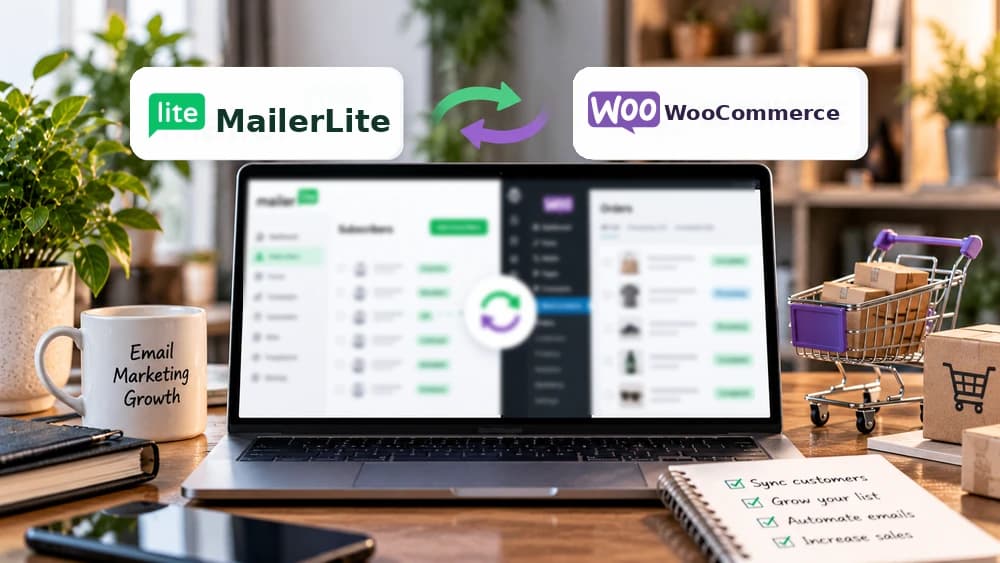
MailerLite lists first name, last name, email and Accepts Marketing among the fields synchronized in both directions. Unsubscribed or forgotten contacts in MailerLite are marked unsubscribed in Shopify, and new subscribers added to the connected MailerLite group can be created in the store.
Test with a controlled address that genuinely opted in, then inspect the group membership and marketing flag in both systems. This helps catch an incorrect group selection or mismatched expectations before you send a campaign. Do not assume every customer attribute, historical action or abandoned cart is exchanged merely because the contact list is synchronized.
Enable the Shopify app extension and signup forms
The MailerLite connection includes a Shopify app extension. Its official instructions say the extension is important for e-commerce campaign tracking and the display of MailerLite pop-ups in the store. Confirm that it is enabled instead of assuming an authorized account connection automatically displays forms.
Create and enable a MailerLite popup, then allow it through the integration settings in Shopify. Review the form's own visibility rules on a narrow phone screen. Check that visitors can dismiss it, understand their consent choice and reach the shop without repeated interruptions.
Use products and purchase information responsibly
Once customer and order data are flowing, MailerLite can show e-commerce revenue information linked to its campaigns and allow Shopify products in email or landing-page blocks. A curated product recommendation is more useful than sending an entire catalog to everybody. Always verify that linked products remain published and prices are still accurate.
A reported sale associated with a campaign is not automatically proof of incremental revenue. Refunds, cancelled orders and attribution rules can affect analysis. Use the reports as operational signals, not as invented testimonials or guaranteed returns from the integration.
Know the supported triggers before setting up a workflow
The Shopify connector supports purchase triggers such as any product, specific product, category, purchase frequency and abandoned checkout. MailerLite's newer help material also describes abandoned-cart automation for recognized Shopify shoppers, subject to subscription and visitor identification. Historical help copies contradict that availability, so confirm the trigger in your connected account before promising recovery.
Abandoned cart and Abandoned checkout are different triggers. For Shopify cart recovery, MailerLite's recent guidance requires a recognized visitor who has agreed to marketing—for example someone who subscribed through a MailerLite form on the store or clicked a MailerLite email. Anonymous visitors are not automatically tracked, and recognition can reset when cookies are cleared or a device changes. Check the options in your store because older help copies reported this trigger as unavailable. Sources: https://www.mailerlite.com/help/e-commerce-automation-triggers and https://www.mailerlite.com/help/how-to-set-up-the-mailerlite-integration-for-shopify.
Account for Shopify's abandoned-checkout restriction
MailerLite states that Shopify abandoned-checkout workflows are limited to returning customers who have placed at least one previous order. First-time buyers and guest checkouts do not become eligible just because they type an email address into checkout. This is a specific Shopify limitation, not a general MailerLite guarantee.
Eligible customers must still be identifiable, active newsletter subscribers and opted in to marketing. If you are testing checkout recovery, use a consented repeat-customer test profile, inspect the workflow status and verify that the message is not sent after the order is completed. Do not advertise recovery of every abandoned checkout.
Troubleshoot a purchase email that never sends
First check whether the store is connected and the Shopify extension is enabled. Then inspect the workflow status, its exact purchase trigger, the customer's subscriber state and the Accepts Marketing field. For abandoned cart, also confirm that the Shopify integration offers the trigger and can recognize the eligible visitor. MailerLite's troubleshooting guide also points to order statuses as a reason that purchase-based workflows can behave differently across stores.
Double opt-in can matter: a customer who has not yet confirmed may be ineligible. For checkout abandonment, verify that the person is an existing Shopify customer with a previous order. Avoid debugging by silently opting everybody into marketing, deleting permission records or restarting a workflow on real customers.
Run a small, permission-based prelaunch test
Before announcing the automation, submit a controlled signup form, verify the subscriber group, open the confirmation message if double opt-in is enabled and inspect a welcome email. If appropriate, use a Shopify test order only within an authorized test configuration, then confirm the purchase data and links that MailerLite actually receives.
Keep this first integration narrow. Claim26's separate MailerLite Free, automation, double-opt-in and landing-page guides cover their own decisions in depth. Check current plan limits before adding more workflows. This guide describes a documented setup, not a hands-on store connection or measured revenue outcome.
Check these four signals.
✓Correct current MailerLite app
✓Consent-based subscriber synchronization
✓Shopify cart trigger: verify availability and shopper recognition
✓Returning-customer-only abandoned checkout
Need the bigger picture before choosing a plan?
Open the current offer and check MailerLite pricing, limits and features before deciding on a subscription.
Official sources for this guide
Software pricing and features can change. Review the official documentation below before choosing a product or plan.