Connect MailerLite to WooCommerce: Email Automation, Consent and Cart Recovery
Install the current WooCommerce plugin, connect using a private API token and an opt-in subscriber group, then confirm cart recovery eligibility and checkout settings before sending campaigns.
Who this integration is for—and what it does not replace
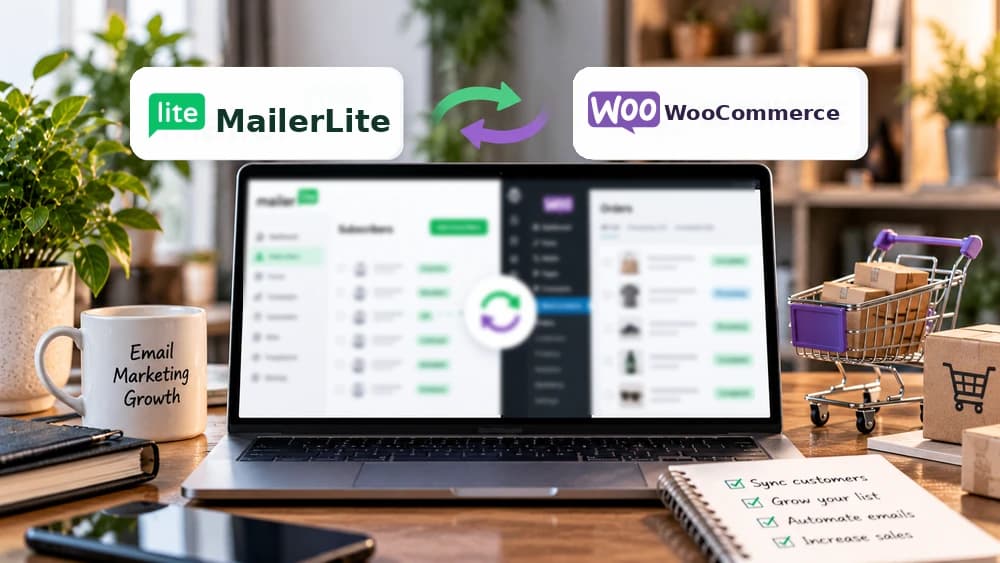
The official WooCommerce–MailerLite plugin links a WordPress store with permission-based email subscribers, product data and selected ecommerce automations. It is useful if you already operate a WooCommerce shop and want to build a newsletter or purchase-related workflows. It does not replace checkout, shipping, catalog maintenance or a lawful subscription process.
Consider a fictional independent homeware shop sending a helpful monthly edit to customers who opted in. The store owner also wants to check whether shoppers respond to a particular product selection. This example explains the workflow; Claim26 has not connected a production store, sent a live campaign or measured sales in MailerLite. The steps follow official guidance: https://www.mailerlite.com/help/how-to-connect-woocommerce-to-mailerlite.
Install the current WooCommerce plugin, not a Classic tutorial
In WordPress admin, open Plugins > Add New and search for “WooCommerce - MailerLite”. Confirm the publisher and compatibility, install, activate, then find the MailerLite tab under WooCommerce. Make sure your existing store is backed up and running before adding integrations.
MailerLite's help mentions a WordPress Business plan for users of some hosted WordPress.com plans that restrict plugin installation. That is not a universal requirement for self-hosted WordPress installations. Avoid older MailerLite Classic tutorials if you use the current product, since the interface and connection process may differ.
Generate an API token and connect the intended subscriber group
In MailerLite, open Integrations > MailerLite API and generate a named token for your WooCommerce store. Paste it into the API key field under WooCommerce > MailerLite, choose Connect account, select or create the subscriber group and start the import. Verify the store link in both accounts before planning any workflow.
An API token is a credential, not something to paste into an article, public screenshot or public code repository. Store it securely and revoke it if exposed. Do not assume selecting a group means all past purchasers have agreed to marketing; MailerLite distinguishes subscribers from ordinary customer records. Official setup: https://www.mailerlite.com/help/how-to-connect-woocommerce-to-mailerlite.
Choose what syncs and keep data collection proportionate
The synchronization settings support a connected group, optional subscriber fields and exclusions for products you do not want in selected workflows. Name and email are essential fields. Other values can include subscriber language, order count, total spend and acceptance of marketing. Review the exact choices in the installed plugin because extensions can change over time.
For a multilingual store, a language field can be useful—but only if the collected value is accurate. A segment such as “people who opted into decor tips in English” is more precise than copying an entire customer database into an email list. Only keep fields needed for an understandable purpose and document your subscription choices.
A checkout checkbox must be a real marketing choice
Enable “Subscribe at checkout” if you want shoppers to volunteer for MailerLite campaigns. Place a visible, clearly labeled checkbox, leave it unselected by default where consent is required, and avoid settings that silently subscribe everyone. Buying from a store and subscribing to promotional email are not the same action.
Double opt-in can add a confirmation email before the person becomes active. That confirmation state matters when testing automation eligibility. Review applicable local legal requirements rather than copying a checkbox setting from a tutorial without context. Resubscription must also be a deliberate choice for someone who previously unsubscribed.
The setting that quietly disables abandoned-cart workflows
MailerLite documents a particularly important WooCommerce option: “Add subscribers after checkout”. When enabled, new subscribers are only added after they finish a purchase, and abandoned-cart functionality is disabled. That trade-off may make sense for certain post-purchase newsletters, but it conflicts with a plan to message opted-in people before checkout.
If your abandoned-cart trigger appears ineffective, examine this setting before reinstalling the plugin. Even with the setting disabled, a guest who is not identifiable or a customer who refused marketing should not receive a recovery campaign. Source: https://www.mailerlite.com/help/how-to-connect-woocommerce-to-mailerlite.
Abandoned cart is not abandoned checkout
Abandoned cart tracks a subscriber who adds products and leaves before checkout. Abandoned checkout tracks someone who starts checkout without completing it. WooCommerce supports both in MailerLite alongside any-product purchases, specific-product purchases, category purchases and purchase-frequency milestones: six supported trigger families in the official reference.
A cart automation needs a recognized, active, opted-in subscriber, and MailerLite's cart help explains that the shopper must be signed in to the store account for that scenario. For checkout abandonment, the recipient's email needs to be collected before leaving and marketing permission is still required. Shopify has a separate returning-customer restriction for abandoned checkout; do not incorrectly apply that to WooCommerce. Sources: https://www.mailerlite.com/help/e-commerce-automation-triggers and https://www.mailerlite.com/help/how-to-create-an-abandoned-checkout-email-automation.
Build one recovery email and avoid duplicates
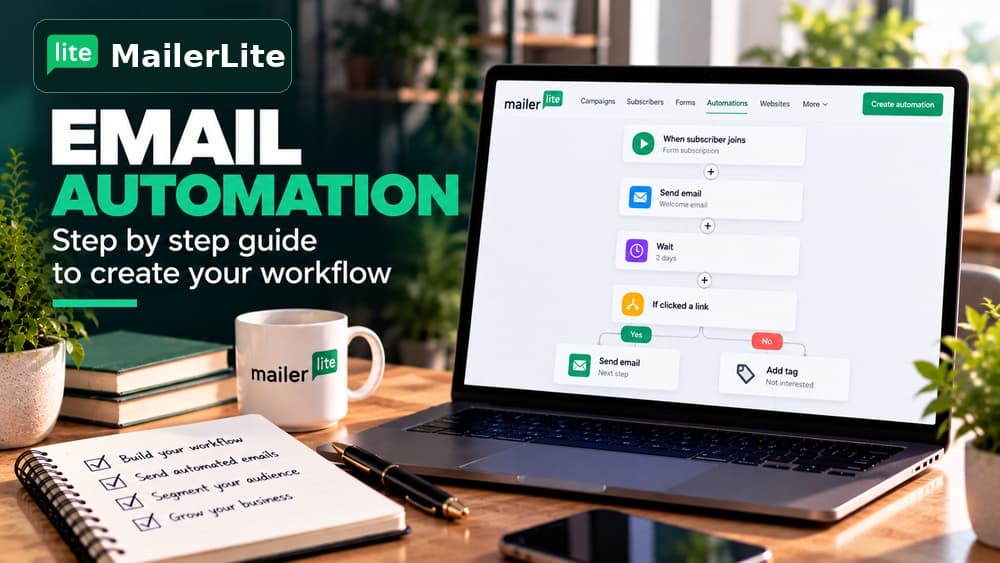
Create an Automation workflow with the connected WooCommerce store, select Abandoned cart or Abandoned checkout, specify a delay and add an email step. For a cart recovery, include the proper abandoned-cart product block. MailerLite considers a cart abandoned after 30 minutes without reaching checkout, while the workflow's actual send delay is independently configurable.
Keep the first email simple: remind recipients of their products, answer a practical buying question and link to the cart. Do not fabricate stock scarcity or savings. If the customer proceeds to checkout or completes the order, MailerLite should stop the cart sequence. Check whether another WooCommerce extension also sends recovery emails to prevent duplicate messages. Source: https://www.mailerlite.com/help/how-to-create-an-abandoned-cart-email-automation.
Bring product cards into newsletters—and watch image formats
The MailerLite Products block can pull selected WooCommerce items, images, current descriptions and prices into an email or landing page. Verify products are still in stock and the links open the intended store pages. MailerLite asks you to enable link tracking to associate relevant clicks and orders with the campaign.
One technical limitation can look like a broken store connection: MailerLite's help says product images in WooCommerce ecommerce blocks must be JPG or PNG, because WebP is not supported for those blocks. That does not prohibit using WebP for ordinary website/blog images. Its campaign “Total revenue” also measures a different scope from each subscriber's “Woo total spent”, so do not compare those totals as if they were identical. Reference: https://www.mailerlite.com/help/how-to-connect-woocommerce-to-mailerlite.
Troubleshoot the order-level MailerLite panel
If purchases fail to reach a workflow, inspect the MailerLite panel on the WooCommerce order page. It reports whether the shopper signed up and was added to the list, existed there previously, had their profile updated, and whether order information and tracking synced. MailerLite also refers to order statuses Pending payment, Processing and Completed when diagnosing ecommerce automation problems.
Use a test subscriber who expressly opted in, then review the active subscriber status, double opt-in confirmation, workflow activity and store synchronization. Fix one variable at a time. A disabled workflow, mismatched subscriber status or “Add subscribers after checkout” can explain a missing recovery message without indicating that every feature is broken. Sources: https://www.mailerlite.com/help/how-to-connect-woocommerce-to-mailerlite and https://www.mailerlite.com/help/e-commerce-automation-does-not-trigger-after-a-purchase.
Prelaunch checklist and deciding whether MailerLite fits
Before sending real email, check that the plugin and API token are valid, the right group is selected, marketing consent is visible, any double opt-in completes, sample product blocks load, tracked links resolve, and an eligible test subscriber reaches the intended workflow. Test mobile signup and unsubscribe as well as a normal checkout.
MailerLite is worth evaluating when you need ecommerce newsletters and targeted follow-ups inside an existing WooCommerce setup. If you first need to compare plans or decide whether MailerLite suits your business, Claim26's separate MailerLite review, Free plan and automation guides cover those decisions. A verified test workflow is a sounder basis for choosing the software than a claimed recovery percentage.
Check these four signals.
✓Current WooCommerce plugin and secure API token
✓Opt-in subscriber list
✓After-checkout import disables abandoned-cart recovery
✓JPG/PNG required in MailerLite product blocks
Need the bigger picture before choosing a plan?
Open the current offer and check MailerLite pricing, limits and features before deciding on a subscription.
Official sources for this guide
Software pricing and features can change. Review the official documentation below before choosing a product or plan.