MailerLite Automation 2026: Set Up a Welcome Email Sequence
Connect a signup form to a MailerLite group, then set up a welcome automation with email steps, delays, confirmed subscriptions and a full test.
Start with one welcome sequence and one clear outcome
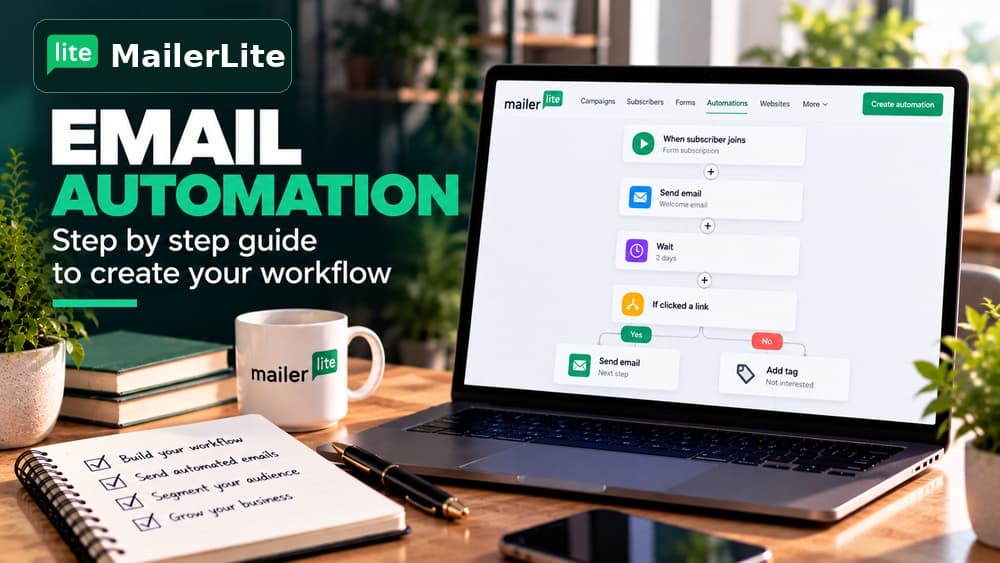
A MailerLite automation is different from sending a newsletter to everyone at a fixed time. Each subscriber enters a workflow when they meet a trigger condition, then moves through the steps you have built. For your first setup, aim to welcome one new subscriber and guide them toward one useful next action.
Plan three messages before opening the editor: an immediate delivery or welcome email, a practical follow-up after a delay, and a final message introducing the next resource or offer. Draft the subject lines, sender details and landing-page links first so the workflow structure stays simple.
Create a subscriber group before connecting your signup form
Create a MailerLite group with a name you can recognize later, such as Welcome — Free Guide. Configure the form that promotes your resource to add new signups to that group. Group membership can then trigger a single workflow even when more than one form promotes the same resource.
This matters when double opt-in is enabled. MailerLite documents that form-based triggers across several signup forms may behave differently depending on which form the subscriber confirms. For a shared welcome resource, a group-based trigger is usually easier to test and maintain.
Choose the Joins a group automation trigger
Open Automations and create a workflow. Select the Joins a group trigger in the editor, choose the group linked to the form and save the trigger. The trigger is the entry rule; merely creating a workflow does not mean the right subscribers will join it.
MailerLite's June 2026 free-plan update allows up to three active automations, so you can test this setup without subscribing to a paid plan. Start with one complete welcome workflow rather than building several empty drafts that do not yet produce any results.
Add email actions and delays in the intended order
Use the add-step control to insert a Send email action. Set a recognizable sender name and address, write a specific subject line and design the message. Add a Delay step before inserting your second email, and use another delay if you want a third message.
MailerLite confirms that consecutive email actions without a delay can be sent at the same time. A reasonable sample sequence is an immediate welcome, a practical tip one day later and an offer-oriented follow-up two days after that. Those intervals are examples to test, not mandatory MailerLite settings.
Double opt-in settings: distinguish forms from API signups
For a MailerLite signup form, double opt-in is on by default when the form is created and can be checked in the form's Overview settings. Each form has its own confirmation email and thank-you page, so updating one does not update every other form. Customizing the confirmation email content requires a paid plan, although enabling the double opt-in process itself is not limited to paying customers. Official documentation: https://www.mailerlite.com/help/how-to-use-double-opt-in-when-collecting-subscribers.
Subscribers added by API or integrations can require separate confirmation settings. Open Account settings, choose Subscribe settings and enable Double opt-in for API and integrations if this is the desired sign-up path. MailerLite documents one shared API confirmation email for these integration-driven subscriptions, so keep that message generic enough to fit all connected sources rather than assuming a form-specific email applies to the API.
An Unconfirmed subscriber submitted their address but has not completed confirmation, so ordinary welcome automation emails are not sent yet. If several forms feed one audience, MailerLite recommends a group-based trigger where practical. With separate Completes a Form triggers, only the workflow for the particular form that was confirmed will fire. Previously active subscribers can behave differently on repeat signup; review MailerLite's status table before concluding something is broken.
Troubleshoot missing confirmation emails before rewriting the workflow
Test the exact signup path with a fresh address, and then inspect the subscriber's status. An Unconfirmed contact is not evidence that the subsequent welcome workflow failed: the confirmation step has not finished. Check the sender under the Double opt-in settings; an invalid sender address can prevent confirmation delivery. Also review personalization variables, confirmation links and the recipient's spam folder.
Where your email provider supports plus addressing, MailerLite suggests using test addresses such as name+1@example.com and name+2@example.com, which it treats as different subscribers. Test the MailerLite form and any API-based entry separately, confirm each subscription, and only then check for group membership and the welcome email. This is a reproducible checklist, not a claim of firsthand testing. Official troubleshooting: https://www.mailerlite.com/help/how-to-troubleshoot-a-form-or-a-confirmation-email-not-delivered.
Test a fresh subscriber and review existing-subscriber options
Once every step is complete, activate the workflow and sign up with a new test address. Follow the same form your readers will use, complete email confirmation if prompted, and verify group membership, the first email, sender details, links and mobile layout. Review automation activity to confirm later steps progress as intended.
Before launch, check the option for subscribers who already match the trigger condition. MailerLite can offer choices about adding previous subscribers to a new workflow. Selecting the wrong option could unexpectedly send welcome emails to an established list.
Connect the sequence to a measurable next step
Give each message a useful next action: collect the promised download, reply to a question, read a related guide or view a specific offer. Test your links and evaluate whether contacts actually progress. Email opens, clicks and successful sales are separate measures and should not be reported as the same result.
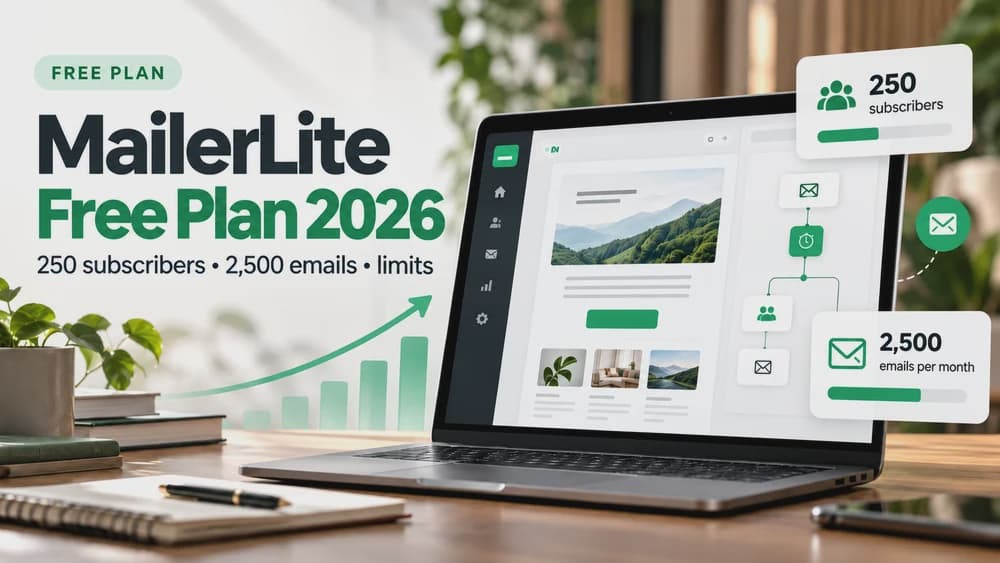
For a small project, the Free plan currently provides 250 active subscribers, 2,500 sends per 30-day period and three active automations. Build and verify the sequence on that tier first, then consider an upgrade only when a real capacity limit affects a working process.
Check these four signals.
✓You already have a signup form
✓You want timed welcome messages
✓You need to check double opt-in behavior
✓You want simple workflow reporting
The safest way to choose is to build a small real-world workflow.
Test the part of the customer journey that matters most before moving your entire system.
Official sources for this guide
Software pricing and features can change. Review the official documentation below before choosing a product or plan.