MailerLite Double Opt-In: Confirm Subscribers Across Forms and Integrations
Enable the appropriate double opt-in switch for every form and API integration, then check the confirmation sender, subscriber status, group and automation trigger independently.
What double opt-in confirms (and what it does not)
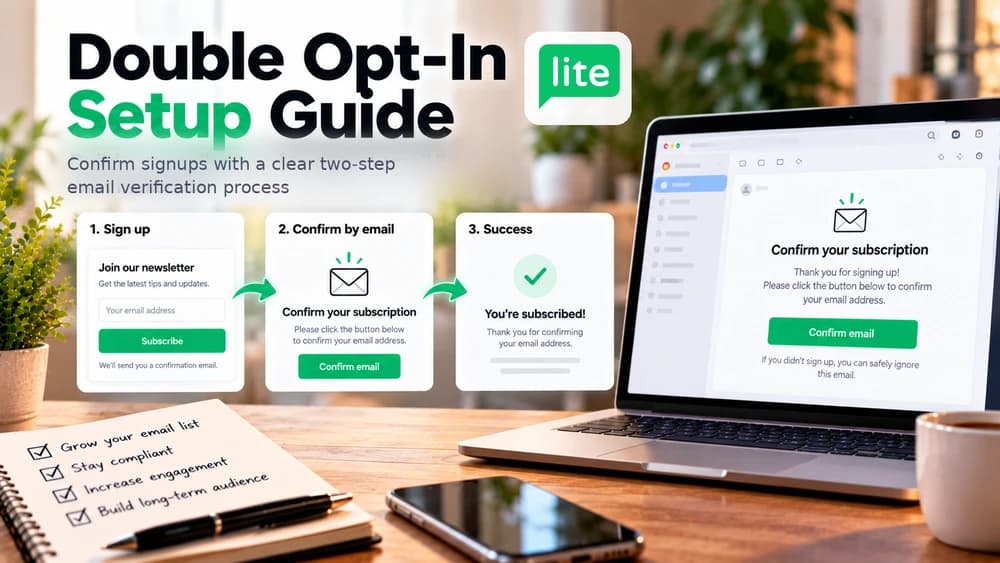
A visitor enters their email address and then clicks a confirmation link delivered to that inbox. Until that second action is complete, MailerLite keeps the new signup in the Unconfirmed status. The extra step helps verify that the person can access the address and reduces accidental signups, but it also creates a point where some visitors do not complete the process.
Double opt-in does not automatically establish legal compliance or guarantee delivery of subsequent marketing emails. You still need clear expectations about the content subscribers will receive, appropriate privacy information and a lawful collection process for your audience. Treat the signup, confirmation and welcome automation as separate stages whose success can be inspected independently.
Step 1 — Review the double opt-in switch on each form
Open the relevant MailerLite form and review its Overview panel. Double opt-in is enabled by default when a new MailerLite form is created, but the published form should still be checked. Do not rely on a single global assumption when several embedded forms, popups or landing pages collect subscribers.
In the Double opt-in tab, review the confirmation email and the confirmation thank-you page. Each form has its own confirmation email. The editor used to customize the confirmation email's content requires a paid MailerLite plan, even though the confirmation process itself can be enabled on Free. This plan distinction is important before following a tutorial that asks you to click a missing Edit control.
Step 2 — Make the confirmed visitor's next step obvious
The confirmation thank-you page is shown after the recipient clicks their email link. MailerLite also documents an option to use your own landing page for the confirmed visitor. If you choose that option, use an accessible HTTPS URL and test the redirect on a phone as well as a desktop browser.
The message immediately after form submission serves another purpose: it tells the visitor to check their inbox. Do not count a visitor who has reached that message as confirmed. Keeping these two screens conceptually separate makes analytics interpretation and support much easier.
Step 3 — Configure API and integration signups independently
If contacts enter MailerLite via an application, ecommerce connector or API, go to Account settings → Subscribe settings and review Double opt-in for API and integrations. Enable that option when your desired subscription workflow requires API-submitted contacts to confirm. A form's own double opt-in switch is not a substitute for checking the integration settings.
MailerLite sends the same API confirmation email to subscribers added through API integrations. When two applications collect different audiences, the confirmation copy should be understandable to both. Use a later group-based welcome automation for specific resources rather than claiming each API source gets a separate form confirmation template.
Step 4 — Connect confirmation to the correct group trigger
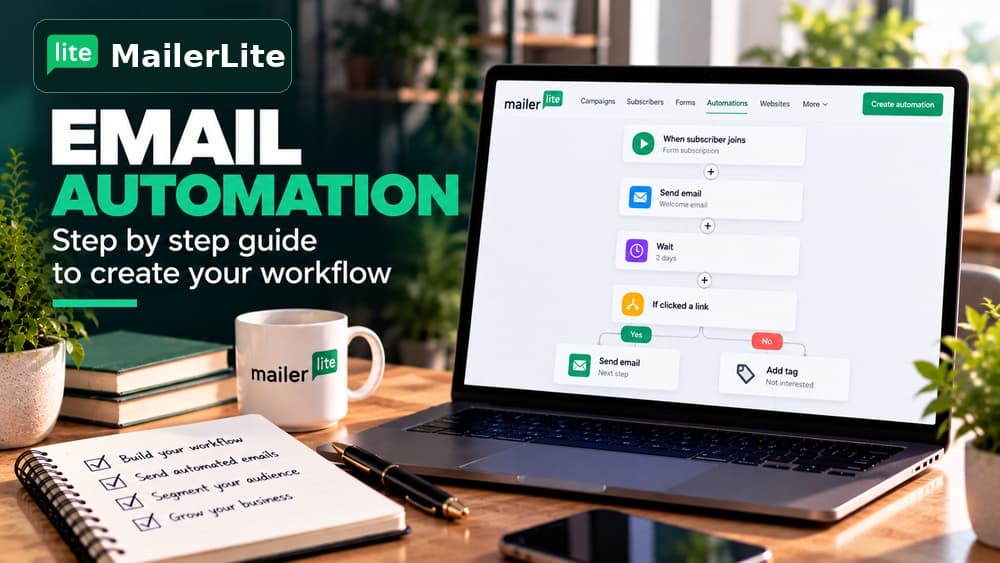
When several forms feed the same downloadable resource or mailing list, MailerLite recommends considering Joins a group as the automation trigger. With double opt-in enabled and separate Completes a form triggers, the documented behavior is that only the automation associated with the form the subscriber actually confirms runs. A group trigger can make the intended entry rule easier to maintain across forms.
Before enabling the automation, inspect the trigger's group, any re-entry setting and whether the workflow is Active. Previously subscribed contacts need separate consideration: a second form submission does not always produce a second confirmation email. For the content, timing and testing of welcome emails, read Claim26's existing MailerLite automation tutorial rather than using this confirmation guide as a duplicate.
Step 5 — Investigate an Unconfirmed address or missing email
First, check the subscriber's MailerLite status. If the person is Unconfirmed, the confirmation is not completed, so it is premature to diagnose a welcome-email automation as failing. Under the form's Double opt-in → Confirmation email settings, check the Sender address: MailerLite warns that an invalid sender can prevent delivery. Review malformed personalization variables and the recipient's spam or junk folder as well.
MailerLite has a status-by-signup-method table for existing Active, Unconfirmed, Unsubscribed and Deleted contacts. Repeat signups do not all generate the same email; some are deliberately treated differently. When testing, separate genuinely new subscribers from people previously in the account to avoid a false conclusion that double opt-in is broken.
Step 6 — Run a repeatable, low-risk confirmation test
Prepare a checklist with form name, test address, time submitted, confirmation arrival, click completed, resulting subscriber status, expected group and welcome workflow entry. Run the signup journey from the actual published form, then separately from one integration if your business uses that route. The checklist is an editorial method, not a claim of a hands-on test performed by Claim26.
Where your mailbox supports it, MailerLite recommends plus-address variants such as name+1@example.com and name+2@example.com. These usually route to the same mailbox but are treated as different addresses by the service. Verify the behavior with your email provider and remove or exclude testing contacts afterwards so they do not distort your reports.
Four situations that require different fixes
This table helps identify which stage of confirmation or the following automation failed before changing unrelated settings.
These scenarios are illustrative, not results from a MailerLite account audit. They keep the troubleshooting focused on the stage that actually failed, without encouraging users to disable double opt-in prematurely.
FAQ: is double opt-in free, and does it slow automation?
Can Free users enable double opt-in? Yes, the form starts with it enabled by default. Can Free users freely edit the confirmation email? MailerLite's documentation reserves email customization for paid plans. Verify the current plan details before purchasing, as limits can change.
Why did the welcome email not arrive immediately? New subscribers need to complete email confirmation first. Existing subscribers can follow a different documented path. Does the confirmation itself satisfy every consent requirement? No: the language presented at collection and the rules that apply to the audience still matter. Claim26 may earn a commission from eligible purchases made through certain MailerLite affiliate links without increasing the purchaser's cost.
Check these four signals.
✓Confirm the setting on every published form
✓Check API and integration opt-in separately
✓Understand the Unconfirmed subscriber status
✓Test groups and welcome triggers after confirmation
Need the bigger picture before choosing a plan?
Open the current offer and check MailerLite pricing, limits and features before deciding on a subscription.
Official sources for this guide
Software pricing and features can change. Review the official documentation below before choosing a product or plan.