Elementor Global Colors and Fonts: Build a Consistent Design System
Use Elementor global colors and fonts to keep pages consistent, separate widget variables from Theme Style and avoid unnecessary Pro upgrades.
Why reusable colors and fonts matter
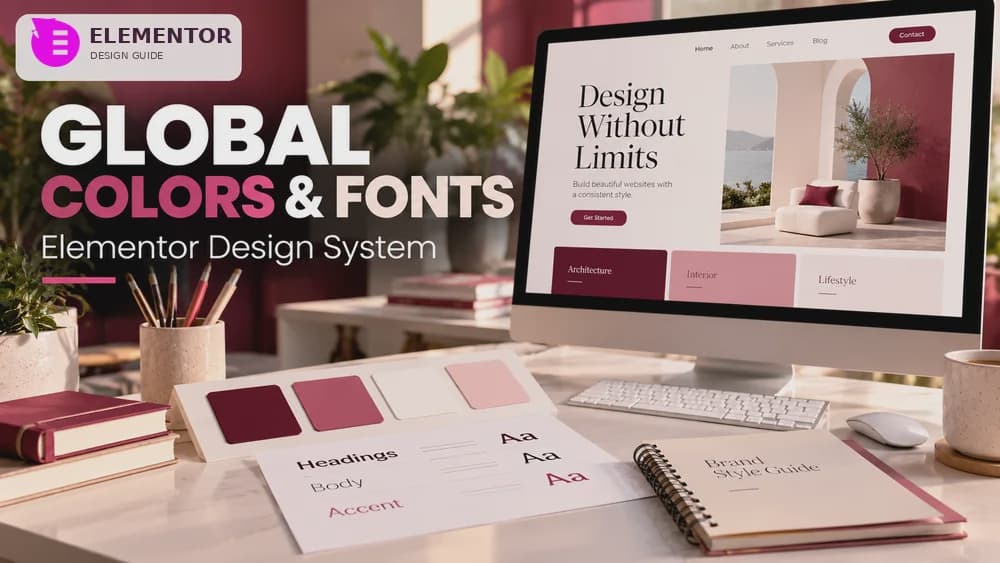
Elementor global colors and fonts keep headings, buttons and content elements consistent across a website. When a widget references a shared style, changing that style can update many instances without manually revisiting each page.
Imagine a fictional architecture studio using one action color, a neutral background and a small type scale. This example describes a maintainable method, not a client-site experiment conducted by Claim26 or evidence that a specific color increases conversion rates.
Find Site Settings in the current Elementor editor
Elementor’s September 2026 instructions place Global Colors and Global Fonts under WordPress Dashboard > Elementor > Editor, then Customize. Site Settings can also be reached from the page editor. The precise menu layout can change with editor versions.
Record existing values and identify the active WordPress theme before editing a widely used style. A global adjustment can affect many pages, so use a staging page or representative sample before assuming every part of the public website will remain consistent.
Build a palette with roles rather than arbitrary names
Start with primary action, secondary accent, text and neutral background colors. Elementor includes predefined global choices and lets editors add named ones. Labels like primary CTA or muted copy describe the role better than names such as blue version four.
Check text contrast against real backgrounds, including hover and keyboard-focus states. An attractive swatch does not establish accessible small text. Use a suitable WCAG contrast check rather than assuming the color picker evaluates readability for you.
Edit and save a Global Color
Open Global Colors, select the shared style and update its value using the color control. Save the change. Elementor documents that widgets actually referencing that shared choice can inherit its updated color without needing one-by-one edits.
A manually assigned widget value or a more specific theme/CSS rule may remain unchanged. Inspect different page types after changing the palette and distinguish linked elements from independent overrides before treating the work as a complete website redesign.
Define a small set of global font styles
Global Fonts lets you edit typography settings and add named styles. Choose a practical hierarchy for page headings, section headings and body text rather than creating a separate nearly identical preset for every component.
Review line-height, weight, narrow-screen sizes and long headings in context. If you load fonts through a third-party provider, consider performance and relevant privacy requirements too. Selecting a font family alone does not guarantee a readable interface.
Assign globals through the widget globe icon
Select an Elementor widget, open its Style controls and click the globe icon next to color or typography. Choose the shared style from your design system. This connects the widget to a reusable value instead of copying the current appearance.
Two widgets can both appear navy blue while only one follows the global setting. On a test page, change one global color temporarily and see which elements update. That experiment reveals local overrides before they become a maintenance headache.
Separate Theme Style defaults from global variables
Elementor’s Theme Style panel defines broad fallback values for HTML headings, buttons, form fields and other elements. Global Colors and Global Fonts provide reusable named choices that can be applied explicitly within widgets.
If a classic WordPress heading and an Elementor heading disagree, inspect theme settings and widget overrides before changing the entire palette. CSS specificity and theme behavior can explain the difference even when the global style itself is working correctly.
Avoid Elementor defaults conflicting with your theme
Elementor includes Disable Default Colors and Disable Default Fonts options for cases where its defaults interfere with those of the installed WordPress theme. These are integration settings, not mandatory switches for every project.
Compare a normal post, an Elementor page, the navigation and form fields after any adjustment. Do not casually delete the Default Kit to fix inconsistencies: Elementor stores global settings there, and deleting it can reset the design system.
Understand Atomic variables and Elementor Pro boundaries
Newer Atomic elements may use Variables Manager, while classic widgets use global color and font styles. Elementor documented a synchronization pathway between them in March 2026, with font syncing limited to Typography.
Core Elementor includes basic global style controls. Global Custom CSS is a distinct Elementor Pro capability. Upgrade when a real site-wide CSS requirement justifies it, not simply because a button has a local color that was never linked to the shared palette.
Validate mobile styles before changing the whole site
Review a landing page, article, navigation and form on desktop and a narrow phone. Check contrast, keyboard focus, heading sizes and which elements still use local values. Save your previous styles so changes can be rolled back if needed.
For page building, use Claim26’s WordPress Elementor tutorial; for plan decisions, consult its Free-versus-Pro guide. The separate contact-form, header/footer and WooCommerce guides cover other workflows without duplicating this design system task.
Check these four signals.
✓Clear brand color roles
✓Explicit global widget assignments
✓Theme overrides checked
✓Mobile and keyboard focus tested
Need the bigger picture before choosing a plan?
Open the current offer and check Elementor pricing, limits and features before deciding on a subscription.
Official sources for this guide
Software pricing and features can change. Review the official documentation below before choosing a product or plan.