How to Create a WordPress Page with Elementor Free: Step by Step
Install Elementor Core on WordPress, create a proper page, arrange free widgets in responsive containers and check the live public URL after publishing.
Begin with a small WordPress page, not a whole-site redesign
This walkthrough creates a single useful page on an existing WordPress installation. It does not provide hosting or require purchasing a site-builder subscription. Prepare an administrator login, an appropriate theme, a properly licensed image and a concise description of what your visitor needs.
Our fictional example is a local bicycle repair service with a clear promise, three services and one action button. The example is for learning rather than evidence of a real client project or a hands-on Elementor benchmark performed by Claim26.
Install the free Elementor Core plugin
In WordPress administration, open Plugins, select Add New Plugin, search for Elementor Website Builder and activate the free plugin. Start with the official editor instead of stacking extra plugins before you know what functionality is missing.
Elementor Core is sufficient for the page in this tutorial. If the editor offers a paid capability, first check whether the basic widget or layout you need is already available free. Make a backup before changing an existing business website.
Create a WordPress page and launch Edit with Elementor
Go to Pages, select Add New Page, add a descriptive title and choose Edit with Elementor. The page remains a WordPress page: the editor handles the visual layout rather than replacing the site's content-management system.
Check the intended URL and visibility before designing. Keep the page as a draft if the site is not ready for visitors, and distinguish an editor preview from the actual published URL that you will share.
Build a clear first screen with a container and core widgets
Add a flexbox container, then drag in a Heading widget, a brief Text Editor block and a Button widget. Containers organize the layout and can be adjusted for different screens without nesting lots of old-style sections and columns.
For the hypothetical bicycle service, use a clear service headline, one sentence about where it operates and one contact action. A visitor should understand the offering without decoding elaborate visual effects.
Add three concise service blocks and meaningful images
Use another container to present three separate services, such as safety checks, brake adjustments and routine maintenance. Keep card headings parallel and writing specific. A three-column desktop layout can become a single column when screen space is limited.
Use images that you have permission to publish, compress them appropriately and write useful alternative text for images that carry information. Avoid adding decorative widgets simply to fill white space.
Use responsive controls and check real mobile behavior
Open Elementor's responsive controls to inspect tablet and phone views. Adjust container direction, spacing, text size, image dimensions and button width where needed. Row layouts can be stacked vertically on smaller screens instead of shrinking text to an unreadable size.
Check for horizontal scrolling and buttons that are too close together. The editor's mobile preview is helpful, but it cannot replace opening the finished page in an actual mobile browser and interacting with it.
Choose Canvas versus Full Width without losing site navigation
Page layouts are influenced by your WordPress theme as well as Elementor's page settings. Full Width usually suits a normal site page that should retain shared navigation, while Canvas is designed for an independent blank canvas and can remove the usual header and footer.
If a page title appears twice, inspect the theme and page settings rather than hiding important content blindly. Add the new page to the site's navigation when visitors should reach it from the menu; creating a page does not guarantee that menu placement.
Preview, publish, and verify the public page
Use Preview to check the design, then select Publish once the content is ready. Open the final public URL in a private browser window. The preview address and the published URL are not necessarily the same, so test the one that visitors will actually use.
Check the contact button, internal links, mobile reading order and keyboard use. Keep one clear main heading and avoid publishing information that has not been confirmed. A successful publish action does not guarantee that Google has indexed the page.
Keep the free builder until a paid requirement is proven
This particular workflow uses Elementor Core and does not need a Pro trial. If you later require advanced theme templates, integrated forms or other paid widgets, check the current plan's feature list and our separate Free vs Pro decision guide before paying.
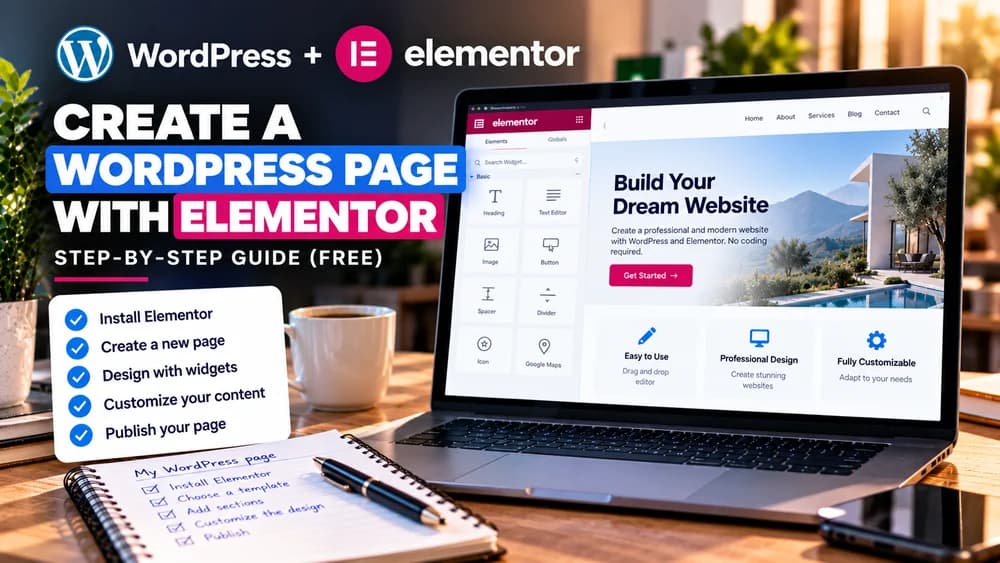
Disclosure: Claim26 may earn a commission if readers purchase an eligible Elementor plan through commercial links, at no extra cost to them. The editorial cover art was generated with AI and is not an authentic screenshot of the Elementor interface.
Check these four signals.
✓Core plugin activated without a paid trial
✓Page created from WordPress before opening the editor
✓Responsive controls checked and mobile order makes sense
✓Public URL, links and site navigation tested
Need the bigger picture before choosing a plan?
Open the current offer and check Elementor pricing, limits and features before deciding on a subscription.
Official sources for this guide
Software pricing and features can change. Review the official documentation below before choosing a product or plan.