WooCommerce Product Pages: Customize with Elementor Pro or for Free
Start with WooCommerce's free Single Product block template if you have a compatible block theme; consider Elementor Pro's dynamic templates when advanced styling and display conditions are needed.
The three things you might mean by customizing a product page
A WooCommerce product detail page typically contains media, title, price, purchase controls, stock and descriptive information. Updating the price or gallery for one product is different from designing a reusable Single Product template that renders data for every product. Mixing those tasks can produce an attractive layout whose purchase button does not actually use the selected variation.
Our teaching example is a small handmade ceramics shop selling a mug in different finishes. This scenario is illustrative, not a Claim26 live-store test. We compare a free block-theme route and Elementor Pro's WooCommerce Builder so that a store owner can choose a sensible workflow.
Check the theme and builder before buying anything
The free WooCommerce Site Editor workflow is available with a compatible WordPress block theme. Look under Appearance > Editor > Templates and find WooCommerce's Single Product template. If the Appearance > Editor menu is absent, verify your theme type and access rights instead of assuming WooCommerce is broken.
Elementor's own Single Product builder uses Theme Builder and WooCommerce-specific dynamic widgets. Elementor's official documentation places this workflow in Elementor Pro, with WooCommerce installed. Check the current Elementor plan's feature list before purchasing, because Elementor Core alone should not be represented as containing the Pro template builder.
Set up a valid WooCommerce product and its variations
Create an actual product with title, image gallery, short summary, full description, price, stock status and relevant product information. Shipping, taxes and inventory belong in WooCommerce data and settings; they should not be simulated as text inside a decorative template.
For a mug offered in cream and charcoal, choose the appropriate product type and, if the finishes have separate stock or prices, create the attributes and variations in WooCommerce. A design template must read the live selected variation. Do not invent variation prices or stock as static labels.
Free path: adjust the Single Product block template
With a compatible block theme, open Appearance > Editor > Templates > WooCommerce > Single Product. On a staging store, reorder the product gallery, title, summary, price and Add to Cart with Options blocks into a readable flow. Save the template and inspect multiple product pages on the storefront.
The shared Single Product template may apply across the catalog. For a special featured item, WooCommerce also documents creating a product-specific template through Add Template > Single item: Product, then choosing the product. This requires an appropriate theme and permissions; moving to a new theme just to gain the Site Editor may have wider consequences.
Elementor Pro path: build a dynamic Single Product template
Open Elementor > Theme Builder > Single Product, create a template, and insert WooCommerce widgets such as Product Images, Product Title, Product Price, Short Description and Add To Cart. These pull the current product's data into the layout, allowing one template to serve several products.
Set display conditions before finishing: apply a template to all products or limit it to a product category or particular products. Review conditions when multiple templates overlap. Do not insert hard-coded photos, stock text or prices into a global template when those should change with the product.
Choose a customer-first structure, not just a stylish mockup
On both desktop and mobile, customers should be able to identify the product, understand the price and choose a variation before adding the right item to the cart. Keep photos honest, show meaningful specifications and make shipping, returns and availability reasonably easy to find.
Test a simple in-stock product, a variable item, an unavailable variation and a successful Add to Cart action. A screenshot of a good-looking page cannot establish that these flows work. This checklist describes checks the store owner must run and is not evidence of a completed Claim26 store benchmark.
Worked example: a mug sold in two finishes
Imagine a handmade mug with cream and charcoal finish options. In WooCommerce, define those options as real product data, keep product images consistent with the selected finish where applicable and ensure the cart receives the correct variation rather than a generic parent item.
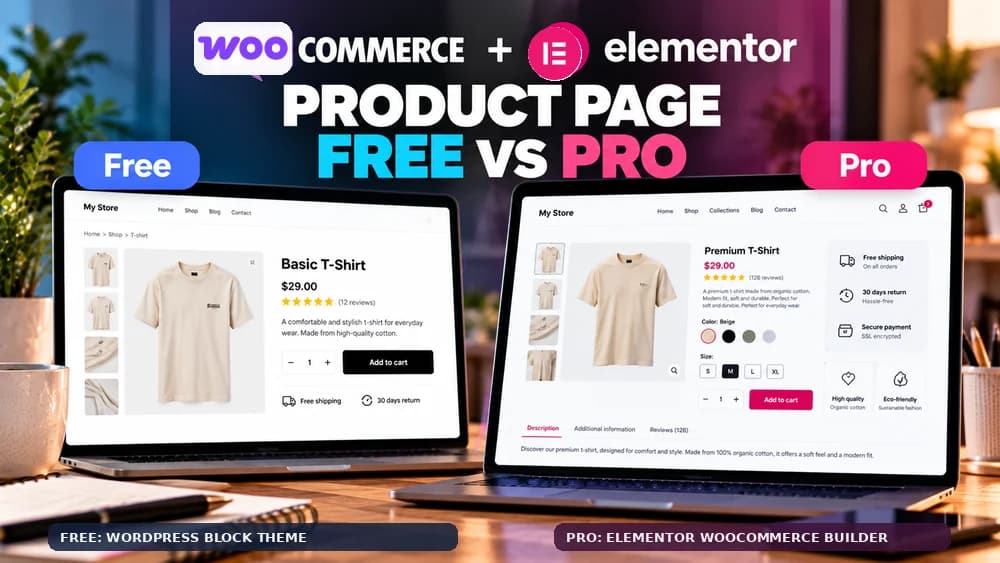
With a block theme, you can rearrange native product blocks without paying for a new page builder. With Pro, you can create a more distinctive layout for the ceramics category while leaving another template for accessories. Whether that flexibility is valuable depends on the number and complexity of product families.
Avoid mistakes that break sales or create rework
Do not replace a working Add To Cart widget with an ordinary decorative button, omit variation selectors, hide essential product information or duplicate prices manually inside reusable templates. Make sure related products are not confused with hand-picked upsells, and confirm the template works for all product types it covers.
Back up the store and test important changes away from live shoppers when possible. Check mobile layout, the cart and order handling with a safe test workflow. Publishing a template says nothing about checkout correctness or organic indexing by search engines.
Verdict: spend on Elementor Pro for a real design requirement
Use the native WooCommerce Site Editor first if your current block theme already allows the product-page layout you need. Consider Elementor Pro if you actively use its design system and require deeper reusable templates or conditions across product categories, but compare the cost and the maintenance consequences with the free alternative.
Review the current Elementor feature list and our separate Free vs Pro guide before paying. Disclosure: some Elementor links in this guide are affiliate links; Claim26 may earn a commission on an eligible purchase at no extra cost to readers. The cover is AI-generated editorial art, not a genuine WooCommerce or Elementor screenshot.
Check these four signals.
✓Block-theme support is checked before suggesting the free Site Editor
✓Price, gallery and variations exist in actual WooCommerce products
✓Theme Builder display conditions target the intended products
✓In-stock and out-of-stock variation cart flows are verified
The safest way to choose is to build a small real-world workflow.
Test the part of the customer journey that matters most before moving your entire system.
Official sources for this guide
Software pricing and features can change. Review the official documentation below before choosing a product or plan.