Edit WordPress Headers and Footers: Free Site Editor or Elementor Pro?
Use WordPress template parts for a free shared header and footer on block themes; choose Elementor Pro when its global visual templates and display conditions match a specific need.
Start by identifying what controls the header and footer
Elementor can edit the body of an individual WordPress page without controlling the site's shared header or footer. Those areas may belong to the active theme, WordPress's native Site Editor or a separate site-part template created in Elementor Pro. Understanding that boundary prevents the common mistake of designing a second navigation bar inside every landing page.
Consider a small consulting website with services, contact and blog pages. The owner needs one consistent logo and navigation, but a simpler header on one campaign page. The useful question is not how to insert a decorative top section: it is how to change a reusable global site part without breaking navigation elsewhere.
Check the active WordPress theme before choosing a builder
Open Appearance → Themes and identify the active theme. With a block theme, Appearance → Editor opens the native Site Editor, where headers and footers can be managed as template parts. A classic theme might instead use its Customizer, built-in header controls or another dedicated settings screen. An installed Elementor plugin does not automatically enable all those WordPress interfaces.
Before switching themes or applying a global template, make a reliable backup and inspect the current homepage, a blog post and any conversion page. Theme changes can affect navigation, design tokens and reusable parts. If all you need is to update one menu destination, the theme's existing controls may be a lower-risk choice than introducing another builder.
Free route: update the header using a WordPress block theme
With a compatible block theme, go to Appearance → Editor and locate the existing Header template part through Patterns or the template interface shown by your WordPress version. Edit the Site Logo, Site Title, Navigation and layout blocks, then save the shared part. These changes affect the templates that reuse that part, unlike editing a single page's content.
WordPress documents an important distinction: making a navigation menu does not automatically place it on the website. Select the Navigation block in the header and assign the intended menu. Check the order of links and submenus, confirm that the logo leads home, and preview at a narrow width so visitors can still move around the site.
Free route: build a useful global footer with template parts
In the Site Editor, open the Footer template part and place a small number of useful blocks rather than duplicating an elaborate marketing section on every page. Common elements include the business name, contact route, relevant legal and privacy pages and navigation back to important sections. Choose only information that genuinely belongs on that site.
Template parts are reusable. Updating a footer link may change the footer across multiple templates at once, so verify those pages after saving. On mobile, check that columns stack in a sensible order, links remain comfortably tappable, and the final call to action is not pushed below a long block of repetitive navigation.
Elementor Pro route: use Theme Builder to manage global parts
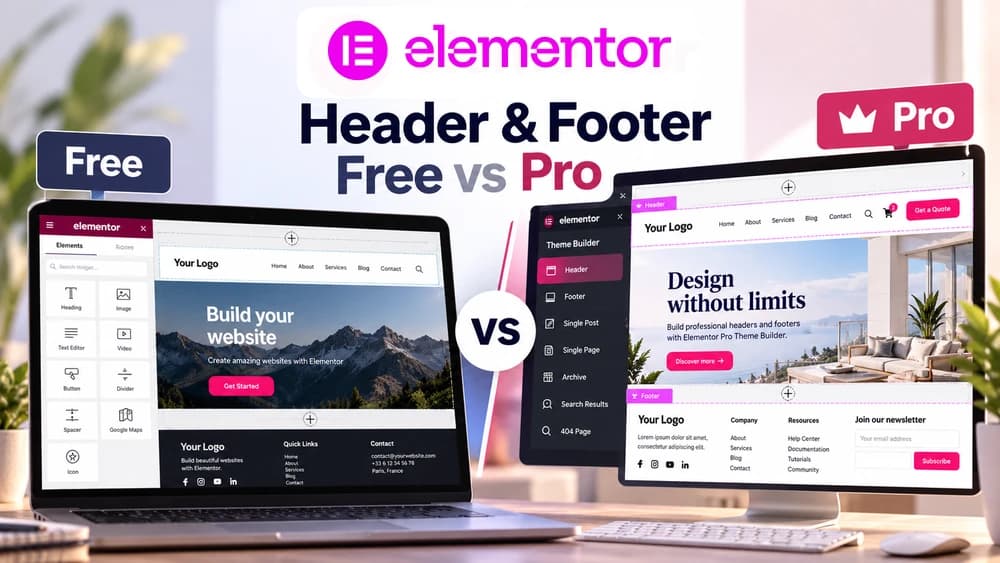
Elementor documents dedicated Header and Footer site parts in Theme Builder. From the WordPress dashboard, open Elementor → Theme Builder, choose the relevant card, and create a design from an existing layout or a blank canvas. The builder is intended for reusable site structure rather than a one-off section inside a single post.
When you publish a Theme Builder part, configure its display conditions: you can include the entire website or select particular areas and pages. A sophisticated mockup that has not been assigned to the right conditions may never appear where visitors expect it. Make a small mapping of which template controls which page group before publishing multiple variants.
Set display conditions without duplicating the theme header
Use an all-site condition when a single global header is enough. If a campaign needs a special design, add a specific rule rather than guessing which template will win. Also inspect the active theme's built-in header: depending on the theme and its settings, leaving that header enabled may result in an unwanted duplicate.
Take the consulting example: the article and services pages keep ordinary site navigation, while the campaign page has a restrained branded header. Preserve a practical way to leave the campaign page and access privacy information. A header that looks minimal but traps visitors is not a successful conversion optimization.
Choose free WordPress tools or Pro based on the actual requirement
For a standard global logo, menu and footer with a block theme, the native WordPress Site Editor is usually sufficient and does not require an Elementor Pro license. For an older classic theme, its existing customization controls may be a better fit. Avoid purchasing a tool just to work around an interface you have not yet identified.
Elementor's 2026 help materials list Theme Builder for managing headers and footers in its Essential Pro tier, but plan packaging can change, so confirm the live offer before buying. Pro is more compelling when you want its visual editing workflow and conditional templates across the website. Popup and WooCommerce functionality can have different plan requirements and should be evaluated independently.
Troubleshooting a missing header or footer on published pages
If the part appears in Elementor but not on your public page, first inspect whether its status is Published and the Display Conditions include that exact page. Next check the page layout: Elementor Canvas intentionally removes usual theme structure, whereas a standard layout preserves it. This is often faster to diagnose than rebuilding the whole header from scratch.
Elementor also recommends reviewing persistent generated files or caches when templates do not update visibly. Check the theme's own header or footer settings and test one change at a time. Capture the affected URL and the active template name before altering conditions, so you can undo a failed change without harming unrelated pages.
Mobile and accessibility checks are part of the release
Test at least a homepage, an article and a conversion page on desktop and mobile. Confirm the menu icon opens the correct navigation, submenu items are reachable, the footer stays legible, and the logo returns visitors to the intended home page. The WordPress Navigation block offers separate mobile overlay controls that should be checked rather than assumed.
Use keyboard navigation as another quick check: tab through links, ensure focus is visible and verify that dismissible menus can be closed. Avoid inserting a repeated page-level heading in every global header; keep the main heading tied to the actual page content. These are practical verification recommendations, not measurements from a website that Claim26 claims to have tested.
FAQ: do you need Pro just to edit a footer?
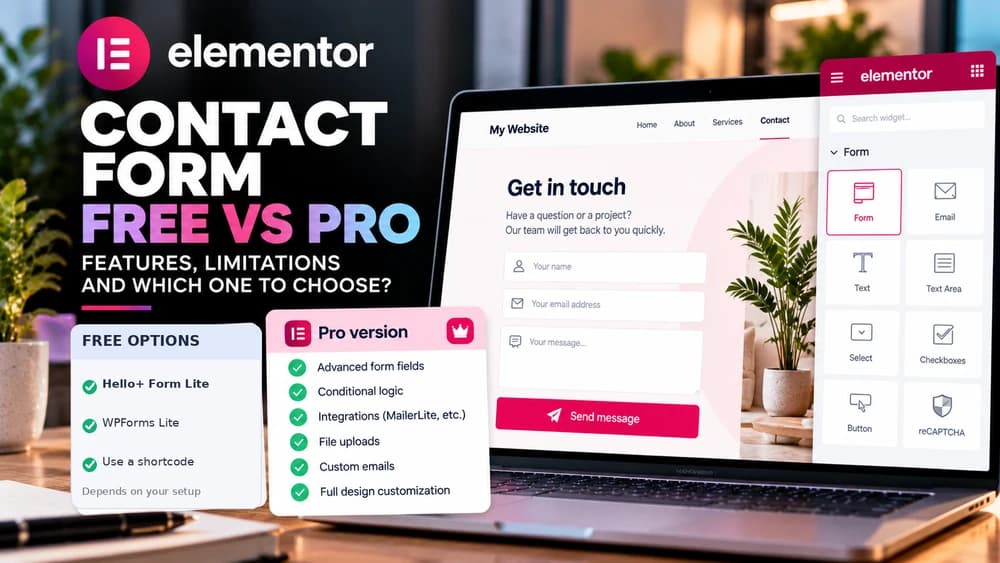
No. Editing a footer can be free through the WordPress Site Editor if the active theme is a compatible block theme, or through a classic theme's own controls. Elementor Core by itself should not be mistaken for the separate Pro Theme Builder. If Appearance → Editor is missing, check the theme type before concluding WordPress has removed the feature.
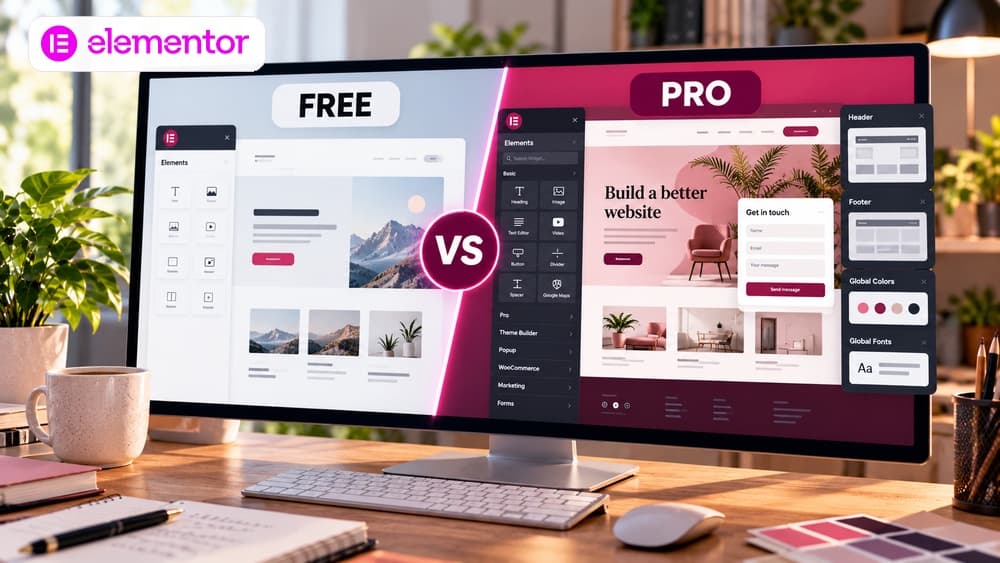
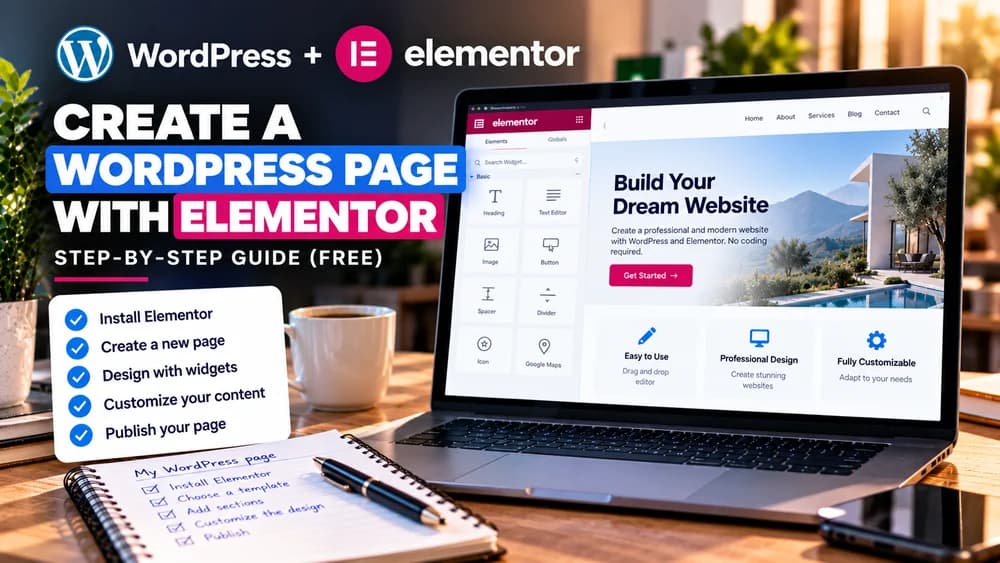
For a single Elementor page, read Claim26's free page-building tutorial rather than buying Pro by default. For a broader purchase decision, compare Free and Pro; for ecommerce-specific product templates, use the dedicated WooCommerce guide. Those questions concern different site structures and are not solved simply by changing a common header.
Check these four signals.
✓Identify the active theme and its editor
✓Attach the intended Navigation block to the shared header
✓Set Theme Builder inclusion conditions deliberately
✓Verify mobile menus, keyboard access and footer links
Need the bigger picture before choosing a plan?
Open the current offer and check Elementor pricing, limits and features before deciding on a subscription.
Official sources for this guide
Software pricing and features can change. Review the official documentation below before choosing a product or plan.