MailerLite Surveys: Add a Survey to Your Newsletter and Read Responses
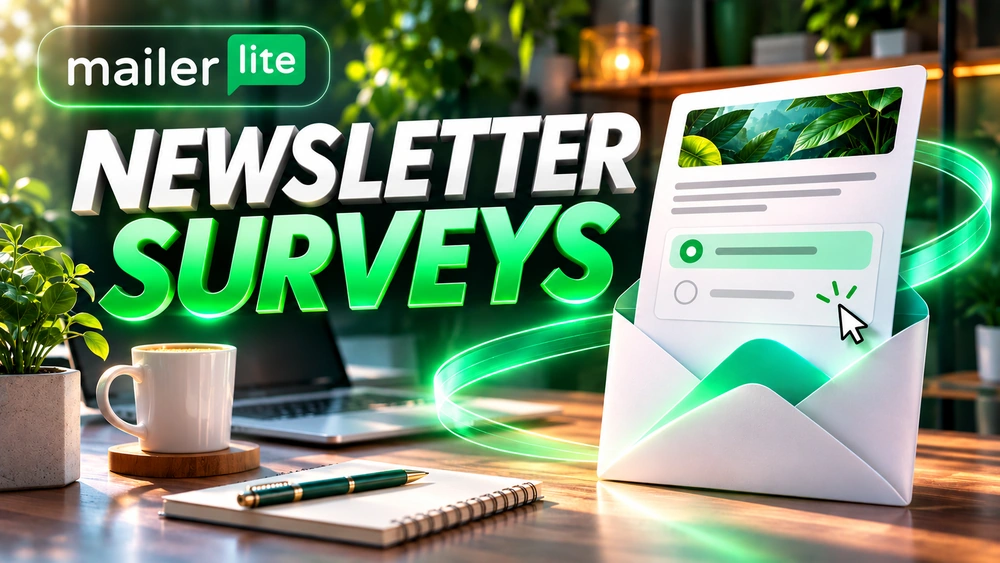
Create a MailerLite newsletter campaign in the Drag & drop editor, add one Survey block from Special, write clear questions and, where needed, rules that update groups or custom fields. After sending, review responses in the campaign's Survey Report; the survey itself opens in the reader's browser.
Can you add a survey to a MailerLite newsletter?
Yes. The current MailerLite Drag & drop email editor includes a Survey block in its Special section. A campaign can display a question and answer choices, but the full response flow opens in a browser tab when someone clicks. This is different from promising an interactive HTML form that runs entirely inside Gmail or Outlook.
Use the survey when the reader's answer will change a real decision: which guide to publish, what type of product explanation to send, or how to improve onboarding. MailerLite stores responses in its campaign reports. This guide is based on the software's official documentation, not a survey or customer experiment carried out by Claim26.
A realistic example: decide which newsletter to write next
Imagine a small creator newsletter for freelancers. Its editor is choosing between a practical automation tutorial, a software comparison, and a short case study. Instead of interpreting email opens as proof that readers want one subject, the editor asks subscribers directly to select the most useful next issue.
A clear question is: 'What would you most like us to explain next?' Offer three distinct answers: 'Automate a repetitive task', 'Compare two tools', and 'See a real-world workflow'. These are illustrative answers, not measured preferences. Before asking, decide how each result would influence the editorial calendar; otherwise you may collect information you never use.
Choose a survey, a quiz, or a preference center
A Survey is designed for subjective feedback and choices, while a Quiz checks knowledge against expected answers. MailerLite also provides a preference center where subscribers can manage ongoing interests or subscription options. The three features overlap superficially, but they answer different questions and should not be treated as interchangeable.
Choose a one-time survey to consult readers about a particular decision. Use the preference center for enduring topics or frequency preferences, because readers should be able to revise those choices later. A quiz makes sense when the content is genuinely educational. Do not use a quiz simply to disguise a marketing questionnaire.
Step 1 — Create a regular campaign in the right editor
In MailerLite, open Campaigns and create a Regular campaign, or find an unfinished draft under Drafts. Select the Drag & drop editor. Enter a truthful sender name and subject, such as 'Help choose our next tutorial', and write a short preheader that explains the request rather than making an exaggerated promise.
The survey tools described here apply to the current MailerLite editor, not necessarily identical screens in the older Legacy (Classic) product. If you manage an older account, first check the correct help center. Preview the campaign's overall structure before adding the survey: the reader still needs useful context and an ordinary subscription footer.
Step 2 — Add the Survey block without duplicating it
Inside the Drag & drop editor, locate Special in the block sidebar and drag Survey into the body of the newsletter. Place it immediately after a short explanation, while the reader still remembers why you want their feedback. The tool may already include a Survey block in a template, so inspect the existing layout before adding anything.
MailerLite documents a limit of one Survey or Quiz block per campaign. That does not mean you can ask only one question: the block supports multiple questions, up to 30 according to the product help article. Resist turning a short newsletter vote into a 30-step questionnaire; a single decision can often be answered with one well-written question.
Step 3 — Write answer choices readers can distinguish
Create a Multiple choice question with mutually understandable options. In our example, automation tutorials, comparisons, and workflow examples describe different formats. Avoid vague alternatives such as 'Better content' or 'More useful advice', because a vote between them will not tell you what to produce next.
Keep option labels short enough for narrow phone screens. Do not lead readers by describing the option you secretly prefer as 'best', 'premium', or 'recommended'. Include an open text field only if someone is genuinely available to review replies; collecting unrestricted suggestions creates work and potential privacy concerns that a simple vote avoids.
Step 4 — Select the appropriate question format
Survey blocks support Multiple choice, Multiple image choice, Open question, Satisfaction score, Net Promoter Score, Like/Dislike, Intro, and Outro. Choose based on the decision you will make. A satisfaction score can be useful after a defined experience, whereas an NPS-style recommendation question is not a substitute for asking which newsletter topic to cover.
Do not combine unrelated measures into one impressive-looking chart. An open answer, a one-to-five satisfaction score, and a recommendation score measure different things. If you include two different measures, explain each and decide in advance how you will interpret them. Avoid claiming that a small self-selected survey represents your whole audience.
Step 5 — Add a clear introduction and finish screen
Use a brief Intro to say why the question matters, whether participation is optional, and what will happen to the answers. In our example, 'Your choice will help plan a future newsletter' is a realistic promise. If there is no prize, do not imply that participation enters a giveaway or unlocks a service.
Add an Outro that clearly confirms completion. Readers who click a survey choice may continue the process in their browser rather than remain inside the email. A distinct ending prevents uncertainty about whether their answer was saved, and it gives them an opportunity to return to the original content.
Step 6 — Use rules to label interests carefully
In the Survey block, open Rules, add a rule, choose the relevant question, and set a condition such as 'Is answered with a specific answer'. MailerLite documents actions including adding a subscriber to a group, moving or removing group membership, updating a custom field, or updating a field with the submitted answer.
Suppose a reader selects 'Automate a repetitive task'. You could add that person to a voluntary interest group such as 'Interested in automation'. Be careful with Move subscriber to the group: moving is not the same as adding an additional interest label, and it may change an existing membership. Test the intended behavior with a controlled subscriber before using it in a live send.
Groups, segments and fields: which result should be stored?
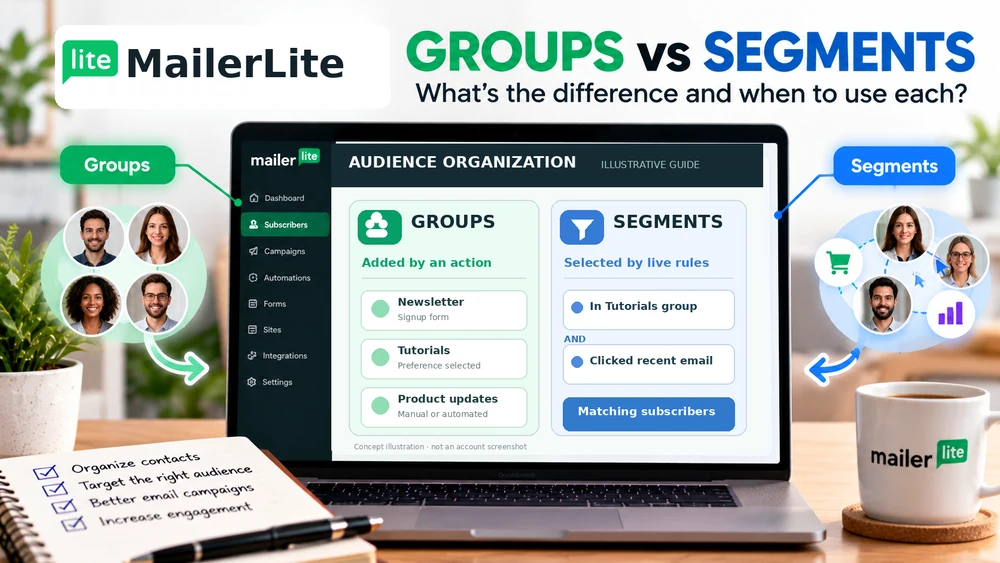
A group is an explicit contact label and can trigger an automation when a subscriber joins. A segment is a dynamic selection defined by filters. A custom field records an attribute or preference. For a one-time poll that only informs editorial planning, you might need none of these; the aggregate Survey Report could be sufficient.
Store a personal preference only if there is a clear future use and the reader has been told about it. If several topics can interest one person, additive groups may be more suitable than an exclusive single field. For advanced targeting, read the separate Claim26 guide to MailerLite groups and segments instead of blindly converting every survey answer into a new workflow.
Step 7 — Use question skipping only when it improves relevance
MailerLite's survey rules include Skip to the question, allowing a response to send someone to a later question. This can avoid asking a software satisfaction question of someone who has never used the software. Keep the route short and make sure every possible branch eventually reaches the Outro.
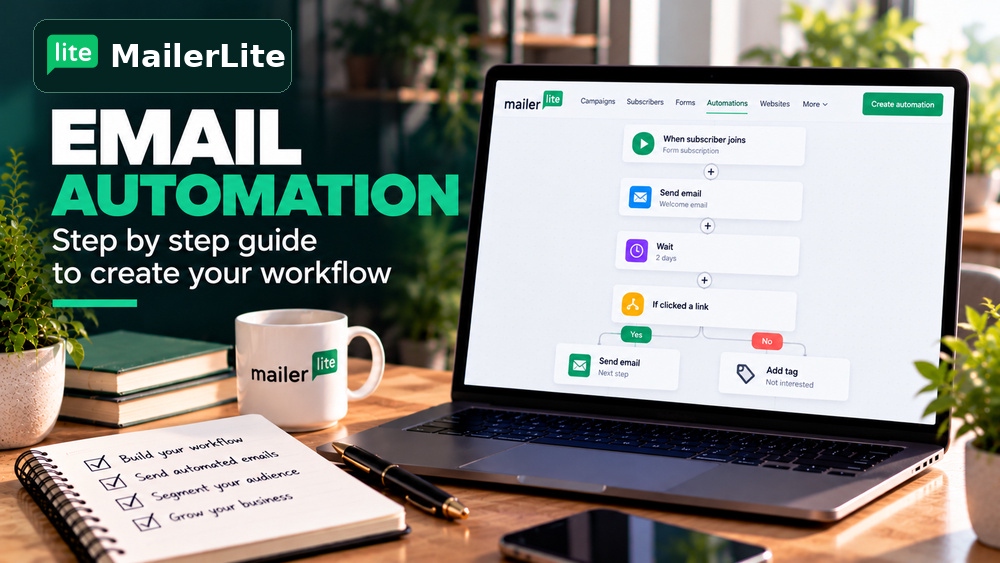
Test each path, not just the default route. A badly configured skip can hide a required answer or send a respondent past the ending. Branching rules in a Survey block are not the same as a MailerLite automation workflow; one controls the questionnaire, while the other controls subsequent email or contact actions.
Step 8 — Preview mobile behavior and send a test email
Preview the campaign at a narrow width, review the subject and preheader, and send a test message to an address you control. Check that the first question is readable, the options have usable touch areas, the browser transition works, and the confirmation screen makes sense. A desktop editor preview alone does not verify the entire response flow.
If you use group or custom-field rules, inspect the test subscriber record after following each relevant path. The answer screen might look correct while a field rule updates the wrong value. Do not claim the integration is verified until the actual contact record changes as expected; Claim26 has not performed that account-specific test for readers.
Step 9 — Send the campaign to the right subscribers
Choose recipient groups or segments that have legitimately subscribed to the kind of newsletter you are sending. A one-off topic survey should not automatically be delivered to unsubscribed addresses, previous nonresponders who opted out, or unrelated contacts imported for a different purpose. Check exclusions and the final audience before scheduling.
Keep the message focused. Explain why the question is relevant to the recipient, provide a simple way to participate, and preserve the ordinary unsubscribe and identification details required for a legitimate newsletter. Do not send repeated follow-ups just to increase your response count; the process should respect the frequency expectation established when people signed up.
Step 10 — Find answers in the Survey Report
Once the campaign has been sent, go to Campaigns, open View Report for the relevant campaign, and select the Survey Report tab. MailerLite's help center says this area shows survey statistics and responses and can export the data. That report is the appropriate place to review the actual answers, rather than estimating voting totals from generic campaign opens.
Compare results to the original editorial choice. For example, if the automation option receives more selections than the comparison option, you may prioritize a practical tutorial. That is an input, not a guarantee that every subscriber wants the same content. Record the response count and the survey period whenever you summarize the finding.
Interpret the results without overstating the sample
A newsletter survey is usually voluntary: people who reply may be more enthusiastic, dissatisfied, or available than people who ignore it. A few dozen responses can still help a small publisher choose its next topic, but they cannot prove what all subscribers or future customers would prefer.
Avoid mixing different denominators. Opens, clicks, completed surveys, individual question responses, and total subscribers are separate measurements. If you need a participation ratio, define whether you mean completed respondents divided by delivered recipients or by some other clearly stated audience. MailerLite provides reports, but the interpretation remains your responsibility.
Survey in an email versus survey on a landing page
MailerLite also supports surveys in landing pages. That flow is useful when responses should come from website visitors, when a public link must be shared outside a newsletter, or when a sign-up step needs to be part of the questionnaire. Its controls and limits are not identical to newsletter surveys: the landing-page help article describes up to 20 questions and a separate sign-up option.
Do not copy the email block's 30-question limit into a landing-page tutorial. Likewise, adding a survey does not magically create an email subscriber or permit promotional follow-up without a lawful sign-up process. If the project needs an enduring preference form rather than a one-time campaign vote, consider a preference center instead.
Common problems: missing block, unexpected browser page or no data
If you cannot add the block, first verify that the campaign is in the current Drag & drop editor and that another Survey or Quiz block is not already present. If a reader says the survey opened outside their inbox, this can be normal: MailerLite explicitly states that the browser completes the interaction because many email clients cannot handle forms inside messages.
If the report seems empty, verify that the right campaign and Survey Report tab were opened, that recipients actually completed the survey, and that the test used a real email rather than only a layout preview. Do not assume a reporting outage or a broken automation without those basic checks. MailerLite support is the appropriate place for account-specific failures.
Pricing, privacy and when a specialist survey tool makes sense
Features, account limits and access to advanced options can change between MailerLite's current plans. Check the official pricing and help pages before relying on a particular premium feature; do not infer an unlimited survey allowance from the presence of a marketing feature page. For a simple reader preference vote, the standard Survey block may be enough.
Collect only information needed for the stated decision. Explain whether responses will influence segmentation, and avoid reusing personal answers for an unrelated purpose without appropriate notice. For complex research, anonymized public polling, deep statistical analysis, or multi-channel fieldwork, a dedicated survey platform may be more appropriate than a newsletter block.
Final checklist before your first MailerLite survey
Decide the editorial question, create a Regular campaign in Drag & drop, insert one Survey block, write clear answer choices, add an Outro, and configure only the rules you truly need. Check mobile readability and the browser continuation; run a controlled test if you update groups or custom fields; then choose authorized recipients and send the newsletter.
Read the actual Survey Report after sending and use the outcome for a proportionate decision. In this tutorial all answers, workflows and result scenarios are illustrative, not actual tests or conversion results. Claim26 may receive an affiliate commission if you subscribe through its disclosed MailerLite partner links, without an additional charge to you.
Check these four signals.
✓Decide which content or service decision the survey will inform
✓Use the current Drag & drop editor and only one Survey or Quiz block
✓Use clearly distinct answer options and a completion screen
✓Test group and custom-field rules on a controlled contact
✓Verify mobile browser transitions and authorized recipients
✓Interpret responses against the number of actual participants
The safest way to choose is to build a small real-world workflow.
Test the part of the customer journey that matters most before moving your entire system.
Official sources for this guide
Software pricing and features can change. Review the official documentation below before choosing a product or plan.