MailerLite Groups vs Segments: Which Should You Use?
MailerLite groups record a membership set by a sign-up or other action, while segments are dynamic audiences recalculated from conditions. Choose groups for declared interests and segments for rule-based targeting.
Groups versus segments: a practical rule for choosing
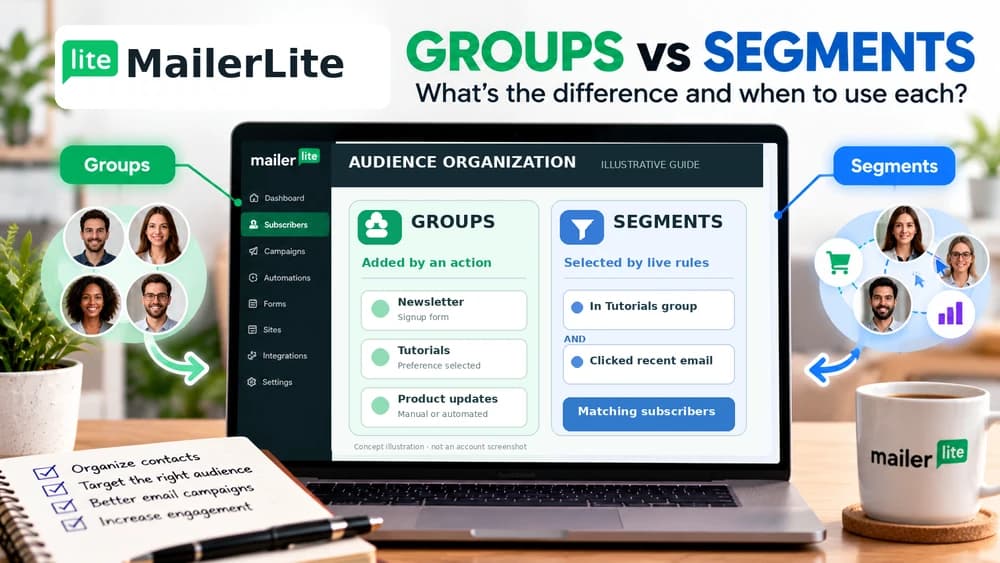
MailerLite groups hold subscribers whose membership is assigned through an action: a sign-up form, an import, a manual change, an integration, or an automation. Segments are collections determined by rules. A subscriber enters or leaves when their information or behavior begins or stops matching those filters. Both can be targeted in campaigns, but the difference matters as soon as your list grows beyond one newsletter.
A useful test is to phrase the requirement as a sentence. “People who asked for our product updates” describes a group. “People who asked for product updates AND clicked a recent campaign” describes a segment. Don't set up a segment simply because it sounds more advanced. MailerLite's own comparison explains which tool fits forms, imports, manual membership, and dynamic selection: https://www.mailerlite.com/help/what-is-the-difference-between-groups-and-segments.
When a group is the right building block
Use a group to preserve the origin or expressed interest of a subscriber: “Webinar registration,” “Weekly product notes,” “Free toolkit download,” or “Customer onboarding.” In Subscribers > Groups you can create the list, and you can connect forms and landing pages to it. A contact can belong to several groups; that does not create several independent copies of the contact. An import or an automation may also change their membership.
For a small newsletter, start with just the groups you genuinely need. Name them after a promise or an action instead of internal codes. For example, a SaaS newsletter can offer product tutorials and release notes as separate interests. These are two useful groups even before any advanced segmentation. MailerLite documents adding, merging, and administering groups here: https://www.mailerlite.com/help/how-to-create-and-use-groups.
When a segment saves manual sorting
A segment is useful when you can write a repeatable rule. Example: “Subscribers in the Tutorials group who signed up during the past 30 days.” MailerLite recalculates that audience as new people meet the conditions and older sign-ups move past the chosen date range. That behavior is not the same as a group, which keeps its members until an action changes their membership.
Create one under Subscribers > Segments, define the conditions and save the segment rather than leaving an unsaved temporary filter. MailerLite supports filters on group membership, subscriber fields, sign-up information, and eligible campaign activity. Check which activity is actually available in your account and avoid treating email opens as a perfect measurement of human attention. See: https://www.mailerlite.com/help/how-to-create-and-use-segments.
AND and OR: why the audience count changes so dramatically
Suppose your company has groups for “Tutorials” and “Feature announcements.” AND means the contact must satisfy both conditions. A segment defined as Tutorials AND recently subscribed would target new tutorial readers while excluding older members of the group. OR means either condition is sufficient; Tutorials OR Feature announcements would reach people who asked for either kind of message.
The common mistake is to choose AND when you mean “anyone interested in at least one topic,” or OR when you mean “people meeting all the qualifications.” The result can be an empty audience or an unexpectedly broad mailing. Compare the audience count against a few known test contacts and document the reason for each condition. These are logical examples, not statistics from a campaign Claim26 operated.
An independent creator's two-newsletter example
Imagine an English-language digital-product creator who publishes design tutorials and occasional product launches. One opt-in form offers a Tutorials group. Another offers Launch updates. Visitors may choose one or both without being placed into every promotional audience by default. The creator also maintains a separate group for people who downloaded a free design checklist; that source information does not by itself establish consent for every future marketing email.
When the creator sends a tutorial for beginners, a segment could combine Tutorials with a recent sign-up date. For a release announcement to people who specifically requested those updates, selecting the Launch updates group may be enough. Keeping this structure simple makes the consent trail and content promise more understandable. This is an illustrative operating model, not a claimed real-world account test or conversion result.
Include and exclude audiences before sending
MailerLite's campaign recipient selection supports both inclusion and exclusion of groups and segments. An exclusion wins when the same subscriber belongs to an included and excluded audience. This can prevent someone who already received an important announcement in another workflow from receiving a conflicting follow-up, without deleting them or altering the meaning of their original group.
Before you schedule a campaign, check the selected Recipients, all Exclude selections, the expected recipient count, and one or two test profiles. A subscriber who is in two included groups is still a single subscriber, but you should not rely on a guess about targeting rules. MailerLite's campaign creation documentation shows where to include or exclude audiences: https://www.mailerlite.com/help/how-to-create-and-schedule-a-campaign.
Groups and segments in automation: two very different triggers
Joins a group triggers a workflow when a subscriber joins the selected group. Joins a segment(s) instead fires when the contact comes to satisfy a segment's conditions. MailerLite warns that a person can leave a segment-triggered workflow if they stop matching those conditions. Editing the segment filters of an active workflow can also behave differently from a new subscriber naturally entering the segment: newly included people from that edit do not automatically start the workflow.
For a basic welcome email linked to several forms, a shared group-based trigger is usually simpler to reason about. For an engagement-based follow-up that depends on current conditions, evaluate a segment trigger and its exit behavior before activation. Multiple triggers in one automation are listed by MailerLite as a Power-plan feature; do not promise them on a free account. Source: https://www.mailerlite.com/help/how-to-set-up-automation-triggers and https://www.mailerlite.com/help/how-use-multiple-automation-triggers.
Treat permission to send as separate from membership
Adding an address to a group or matching a segment rule does not create marketing consent. Keep track of the promise shown on the signup form, confirmation status, source of the contact, and any unsubscribe or preference change. A business can have contact data for an order or account without permission to use that address for unrelated promotional emails.
Use test addresses you control when inspecting triggers and recipient filters. Do not resubscribe someone by moving them into a different group after an unsubscribe request. Depending on your location and audience, applicable privacy and marketing laws may impose additional requirements; this explanation is a process checklist, not legal advice. The Claim26 guide on MailerLite double opt-in covers a separate step in documenting confirmation.
Troubleshooting a segment that is empty, stale, or too broad
Start by inspecting one contact whose eligibility you already understand. Check their groups, field values, sign-up date, and any campaign interaction mentioned in the filters. A segment requiring an email click cannot include a test contact who never clicked a matching campaign. If the filter combines mutually exclusive attributes with AND, the result may be empty even though the subscriber list itself is healthy.
An unexpectedly broad segment often indicates an OR clause or a missing exclusion. Save the corrected filters, refresh the segment and verify the selected audience before sending or activating automation. If a segment-based automation is already live, take particular care when changing criteria because those changes can affect people currently inside the workflow. MailerLite documents these safeguards in its segments and automation-trigger help articles.
A low-maintenance way to start and measure relevance
Begin with one or two purpose-driven groups tied to clear form choices. Run a relevant campaign. Create a segment only for a question the groups cannot answer, such as newer tutorial readers or people who clicked a particular message. Keep a short note explaining the filters, the audience you expect, and any exclusions. This makes future revisions more reliable than collecting dozens of overlapping segments.
Review send volume, unsubscribes, and clicks with enough context to interpret them. If targeting seems to work better, consider differences in subject line, content, and audience size before crediting segmentation alone. For broader product suitability, use the MailerLite review and free-plan guide; for the welcome flow, use the MailerLite automation tutorial. None of these examples guarantees engagement, purchases or affiliate earnings.
Check these four signals.
✓Signup groups map to genuine interests
✓AND/OR filters verified with test contacts
✓Excluded recipients checked before campaigns
✓Automation exit rules and consent reviewed
Need the bigger picture before choosing a plan?
Open the current offer and check MailerLite pricing, limits and features before deciding on a subscription.
Official sources for this guide
Software pricing and features can change. Review the official documentation below before choosing a product or plan.