MailerLite Re-Engagement Campaign: Win Back Inactive Subscribers
Identify inactive MailerLite subscribers, save them as a segment, send one useful win-back message with a genuine stay-or-leave choice, then unsubscribe carefully after checking responses.
How to create a MailerLite re-engagement campaign
A MailerLite re-engagement campaign is a deliberate final invitation to subscribers who have stopped interacting with your newsletters. Instead of sending the same promotions indefinitely, identify the people who have had a fair chance to see your emails, send one relevant message asking whether they still want them, and stop sending regular campaigns to those who decline or remain unresponsive. The goal is a healthier, permission-based list—not a promise to recover every contact.
In MailerLite, a straightforward route is Subscribers → Clean up inactive → adjust the inactivity conditions → save the results as a segment → create a campaign addressed to that segment. For a controlled series, you may move eligible subscribers into a separate group and start a workflow with the Joins group(s) trigger. Those are alternative workflows: a segment is a dynamic selection; a group is an explicit membership event. This guide concentrates on the win-back decision rather than repeating general welcome-email or cleanup tutorials.
What counts as an inactive subscriber in MailerLite?
MailerLite's Clean up inactive tab uses a default of no recorded activity during the last six months and more than ten emails sent. The time selector offers six, twelve or twenty-four months, or Never opened. The volume selector includes up to ten, more than ten, more than fifty and more than one hundred sent emails. You can change these thresholds; they are not a universal verdict on whether a person values your newsletters. Official reference: https://www.mailerlite.com/help/how-to-clean-up-inactive-subscribers.
Do not classify a new subscriber who has received just one welcome message as a failed relationship. A monthly newsletter sent only four times in six months has a different opportunity to engage from a weekly update. Review recent acquisitions, sending frequency, past clicks, paid customer status and important account notifications before selecting people for a relaunch. An opening signal alone is incomplete because email privacy features and image blocking can distort open statistics.
Step 1 — Save an inactive segment without unsubscribing anyone
Open Subscribers and select Clean up inactive. Review the default filters and adapt them to the actual number of messages each subscriber has received. Instead of clicking Unsubscribe inactive immediately, open the dropdown next to that action and save the selected subscribers as a segment. Name it something explicit, such as Re-engagement candidates — November 2026. This is the safest first stage because it creates a targetable audience without changing their subscription status.
Check the segment count and inspect a small sample of profiles. Exclude people who have recently bought, requested support, or joined a new program if sending a generic 'we miss you' message would be inappropriate. A segment is based on rules and may change when someone's activity changes; save the criteria used for your campaign and recheck the final recipient count before pressing Send. Source: https://www.mailerlite.com/help/how-to-clean-up-inactive-subscribers.
Step 2 — Exclude people who should not receive the win-back message
Before writing, review what consent the contacts originally gave and whether the planned message remains within that relationship. Do not re-import old unsubscribed addresses or treat a bounced address as eligible for marketing. If you have a group of important active customers, recent buyers or people already being onboarded, consider excluding it from the campaign to avoid contradictory messages.
MailerLite's campaign editor has Select recipients and the option to Exclude segment or Exclude group. Its advanced filters include Exclude last emailed, Time inactive and Signup source. Use these controls to avoid sending the win-back message immediately after another newsletter or to contacts whose recent activity makes the message irrelevant. Always inspect the calculated audience before launching. Official instructions: https://www.mailerlite.com/help/how-to-exclude-subscribers-from-a-campaign-or-an-automation.
Step 3 — Write a useful win-back email, not a guilt trip
The message should remind the reader why they joined, highlight what has changed or what remains useful, and offer a simple choice. A sample subject for an educational newsletter is: Still want our practical guides? An illustrative body could read: You subscribed for short website tips, but we haven't seen much interaction recently. If you'd like to continue, choose the topics you care about using the link below. If these messages are no longer useful, you can unsubscribe at any time.
Use a real landing page, preference center or clearly described confirmation action—not a decorative button. A recipient's deliberate click on a preference or interest link is more useful than an open alone. Avoid misleading urgency, fake scarcity or saying you personally missed somebody you have never met. If you offer a discount, make its terms accurate and do not imply that discounts are required for re-engagement. The example above is original illustrative copy, not a MailerLite account experiment.
Step 4 — Choose a one-off campaign or an automation
For a small or occasional cleanup, a one-off campaign to the saved inactive segment is simpler to review. You can create the campaign, choose the segment as recipient, apply exclusions, send yourself a preview, and confirm the final audience. If your team performs the same process regularly, a controlled automation can be useful, but it also creates more opportunities for duplicate or misplaced messages.
MailerLite publishes an example in which inactive contacts are first added to a dedicated group and a workflow starts when they join that group. The example uses an email, a Delay and further conditions or messages. Crucially, creating a saved segment does not by itself trigger a Joins group(s) automation: you must explicitly add the intended contacts to the trigger group and verify the entry rules. Reference: https://www.mailerlite.com/automation-examples/inactive-subscriber-re-engagement.
Step 5 — Give subscribers an easy way to stay or leave
Make the choice real. For example, link to a preference center where subscribers can choose fewer emails, or use an interest page that updates an explicit MailerLite group through a form or supported integration. Do not promise that clicking a generic article link will automatically prevent deletion unless you have configured a way to record that action.
MailerLite also supports excluding a group from certain automations started by Joins group(s), Event anniversary or Exact date triggers. Its help center says that a subscriber already queued in a workflow is canceled from it if they join an excluded group. You can use a genuinely configured 'Keep subscribed' group as an exclusion when that fits your workflow, and test it with an address you control before sending. Source: https://www.mailerlite.com/help/how-to-exclude-subscribers-from-a-campaign-or-an-automation.
Step 6 — Use a short follow-up only when it adds value
If you choose an automated sequence, allow enough time for the first message to be read before any follow-up. A hypothetical plan is an initial choice email, a delay of several days, and a single short reminder explaining what continuing means. Those intervals are examples to test against your audience; they are not vendor-reported conversion benchmarks. Avoid adding many repeated reminders just because the workflow editor allows them.
Set conditions or exclusions so that someone who confirms interest does not receive a second 'please stay' message. Likewise, an unsubscribe should never be treated as a request to join a different marketing list. Test positive and negative scenarios with accounts you control: one clicks to continue, one takes no action, and one unsubscribes. Inspect the resulting group and workflow status rather than assuming an email open proves renewed permission.
Step 7 — Unsubscribe carefully after the campaign
After the response window, review actual clicks, preferences or other reliable engagement before taking action. From Subscribers → Clean up inactive you can use Unsubscribe inactive for the eligible remaining contacts. Check the selection again at the time of the action, because the underlying segment rules may have changed. MailerLite also offers deletion actions, but these are not interchangeable with unsubscribing.
Unsubscribe stops newsletter sending to that active address. Delete removes the contact from your account while retaining information in case the person signs up again. Forget removes the contact and its information, which MailerLite says is fully deleted within thirty days; forgotten contacts cannot be restored through the ordinary process. Its help center was updated August 28, 2026. Do not select Forget for a routine campaign cleanup or claim it is required for every inactive contact. Source: https://www.mailerlite.com/help/how-to-delete-or-forget-a-subscriber.
A realistic example: a newsletter with 200 subscribers
Imagine a small creator newsletter with 200 active contacts, including 40 people who meet a chosen inactivity rule. You inspect the profiles and discover that 8 recently subscribed to a different product update, so you exclude them from this specific campaign. The remaining 32 receive one clear message and a preference link. These figures are invented solely to demonstrate audience selection and are not a real campaign, benchmark or conversion estimate.
Suppose five people deliberately select a topic to continue receiving and three use the unsubscribe link. You would verify that the five are recorded correctly, that the three are unsubscribed, and that the remaining 24 are evaluated only after the stated response period. The safe decision is driven by each person's actual selection and consent, not by treating every unopened email as proof that the account should be deleted.
Can MailerLite Free handle a re-engagement campaign?
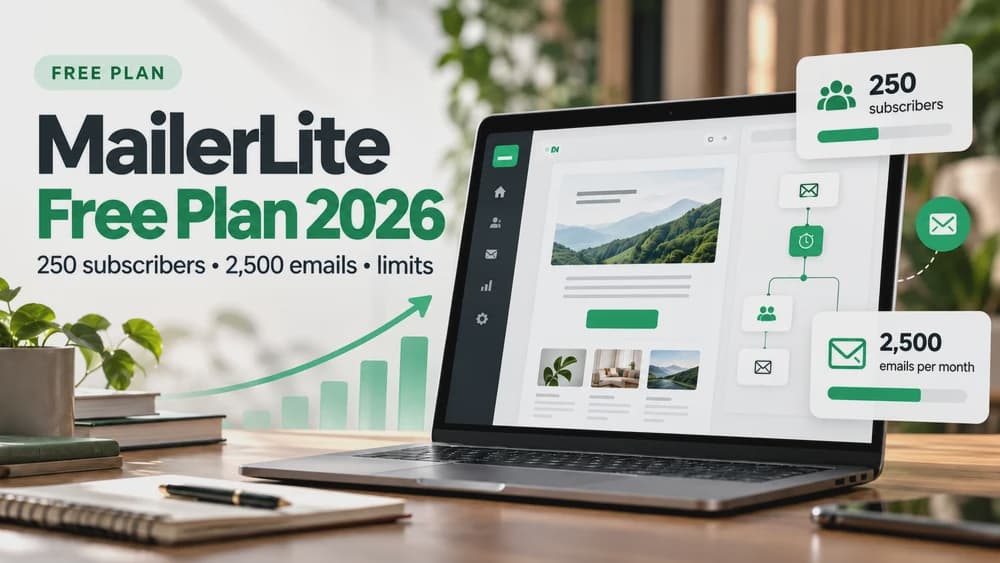
MailerLite's June 2026 free-plan update documents a limit of 250 active subscribers, 2,500 sent emails per month and up to three active automations, with additional restrictions on forms and other assets. Free-plan accounts that exceed limits may have sending and automations paused until the account is brought within limits or upgraded. A single carefully targeted campaign is not inherently a paid feature; the ability to use more elaborate automations depends on your account and the plan's current included features.
Free-plan subscriber counts do not include unsubscribed or bounced contacts, according to MailerLite, and every sent campaign or automation email counts toward the monthly sending limit. Do not delete engaged contacts to reach an arbitrary target or assume that upgrading fixes consent and deliverability issues. Check the current plan information before choosing a subscription. Official FAQ: https://www.mailerlite.com/help/free-plan-update-faq.
Troubleshooting and an acceptance checklist before sending
If the inactive list seems too large, verify the time and email-volume filters and the limits of open tracking. If your campaign audience is unexpectedly empty, check the segment rules and recipient exclusions. If an automation does not run, confirm that contacts joined its specified group, that the workflow is active, and that excluded groups are not canceling them. A segment's name alone does not enroll contacts in a group-based workflow.
Before sending, confirm the purpose and permitted audience; preview the subject and mobile layout; test the preference and unsubscribe links; verify the correct MailerLite sender domain; inspect the final recipient count; and send a test to addresses you control. After sending, review genuine preference updates, unsubscribes, spam complaints and bounces. These are proposed controls; Claim26 did not run a live MailerLite campaign for this article.
The right outcome is a smaller, more relevant list
A re-engagement campaign succeeds when people who still value your newsletters can remain and those who do not can leave easily. It is not a mechanism for hiding mandatory service messages, resurrecting unsubscribed addresses or promising a particular deliverability boost. If many people consistently stop engaging, revisit the signup promise, frequency and newsletter content rather than relying on repeated win-back promotions.
Choose MailerLite when its groups, segments, campaign exclusions and automation capabilities meet your actual workflow; choose a paid plan only for requirements that the current free tier cannot support. Claim26 may earn a commission from qualifying MailerLite subscriptions through disclosed affiliate links, at no additional cost to visitors. This guide is based on official sources and illustrative examples, not on a tested customer account.
Check these four signals.
✓Set an inactivity threshold based on real sending history
✓Save and review the audience before changing contact status
✓Test a preference link, exclusion group and unsubscribe
✓Use cleanup actions only after a clear response window
The safest way to choose is to build a small real-world workflow.
Test the part of the customer journey that matters most before moving your entire system.
Official sources for this guide
Software pricing and features can change. Review the official documentation below before choosing a product or plan.