Why MailerLite Emails Go to Spam: 10 Causes and How to Fix Them
If MailerLite emails land in spam, identify affected providers, check SPF/DKIM/DMARC and sender reputation, review list consent and inactive contacts, then test content and links before the next campaign.
Why are my MailerLite emails going to spam?
If a MailerLite campaign arrives in spam, first identify whether the problem affects every mailbox provider or only certain recipients. A message that MailerLite reports as sent or delivered can still be filtered into Spam, Junk or another mailbox folder: delivery to a receiving server is not the same as placement in the main inbox. No platform can guarantee inbox placement, even when the sender domain is authenticated.
The ten checks below focus on the factors you can investigate without randomly editing DNS records, reinstalling MailerLite or repeatedly resending the same campaign. Start with a small, permitted test, your domain status and the sending history. Then check list quality, content and recipient-specific behavior. This guide complements Claim26's existing domain-authentication and double-opt-in tutorials; it is not a replacement for either.
First diagnose the symptom: rejected, delivered or placed in spam?
Open the relevant MailerLite campaign report and distinguish rejected or bounced deliveries from messages that a subscriber actually finds in Spam. A hard bounce is not an inbox-placement issue. A message in Gmail Promotions is also not necessarily spam; tab classification and junk filtering are separate outcomes. A message disappearing into one recipient's mailbox is too little evidence to conclude the entire account has a reputation problem.
Record the campaign date, sender address, authenticated domain, approximate audience and the providers affected, such as Gmail, Outlook or Yahoo. Ask recipients who opted in to check Spam and Promotions if appropriate, and inspect a message's technical headers when you have lawful access to that mailbox. Keep a note of what was verified rather than interpreting one open rate or a test addressed only to yourself as a deliverability guarantee.
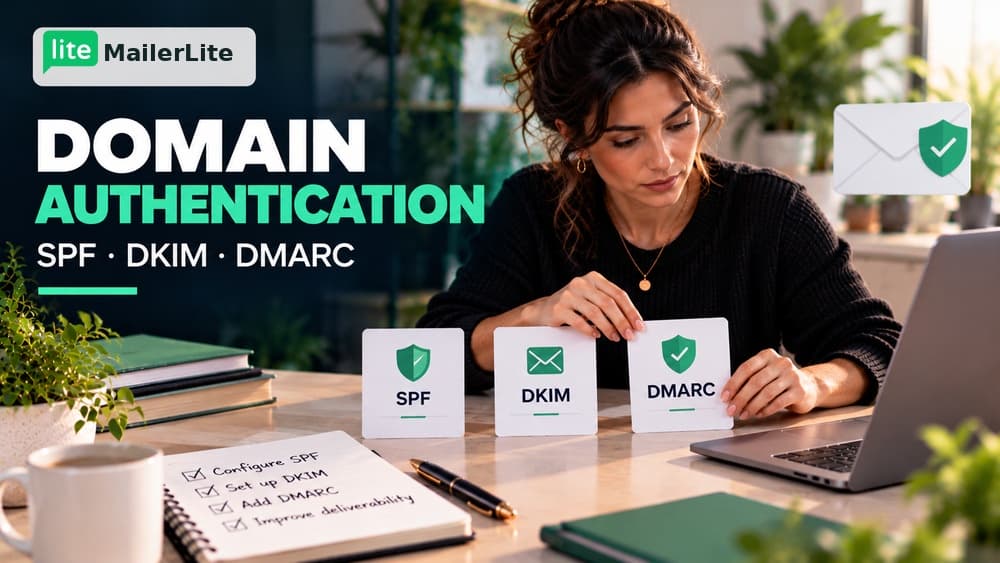
Cause 1 — The sending domain is not authenticated
MailerLite recommends sending from an address on your own domain and authenticating that domain in Account settings → Domains. The platform provides domain-specific verification records, including SPF and DKIM entries, and may offer a guided automatic setup. If MailerLite shows the domain as unauthenticated, incomplete or failed, investigate this before experimenting with subject lines. Google and Yahoo's sender requirements make sender identity especially important.
Use the exact DNS host names and values supplied inside your account; do not copy an example SPF string from a blog post into production. If your DNS provider automatically appends the domain, adding it twice can create an invalid record. Changes may need time to propagate, and the DNS zone must be edited at the provider that actually hosts your nameservers. Follow the dedicated setup guide instead of experimenting on a live domain: https://www.mailerlite.com/help/how-to-verify-and-authenticate-your-domain.
Cause 2 — SPF or DKIM looks configured but still fails
Authentication can fail even when records exist in your DNS panel. MailerLite documents problems caused by multiple SPF TXT records, mismatched values, excessive SPF lookups, wrong host-name formatting and an incorrectly entered DKIM CNAME. In MailerLite's Domains area, use Check DNS records and, if a record fails, the Troubleshoot action for that record. Verify each value against the live configuration before making a correction.
An SPF record should be consolidated carefully when more than one mail service sends on your behalf; deleting another legitimate sender's entry can break its mail. DKIM also needs to match MailerLite's specified value. If you use Microsoft 365 or another sender in addition to MailerLite, do not replace the domain's entire authentication policy without accounting for those systems. Official troubleshooting: https://www.mailerlite.com/help/troubleshooting-domain-authentication.
Cause 3 — DMARC or your From address does not align
DMARC helps receiving providers evaluate whether an authenticated sender is authorized to use the visible From domain. A domain can have SPF and DKIM records while still failing alignment for a particular outgoing stream. Review the From address your readers see, MailerLite's authenticated domain and any existing DMARC policy. Gmail, Yahoo and other providers apply sender rules that may vary with sending volume.
Do not add a strict DMARC rejection policy blindly. An overly restrictive policy can block legitimate mail from other services that share your domain. MailerLite's Google and Yahoo checklist recommends a professional sending domain, proper authentication and an easy unsubscribe process. Its documentation notes that one-click unsubscribe support is included in MailerLite campaigns. Refer to a qualified administrator if you manage several sending platforms: https://www.mailerlite.com/help/google-yahoo-policy-changes-checklist.
Cause 4 — Your sending reputation is suffering
Providers also evaluate patterns over time: how often subscribers complain, whether past messages bounced, whether the domain suddenly started sending high volume and whether people consistently ignore unwanted newsletters. An authenticated domain is necessary for many senders, but authentication alone does not make a poor-quality mailing list trustworthy.
Inspect a few recent campaigns rather than just the latest one. Compare recipients, complaints, bounces and meaningful interactions. If you recently moved a list or changed domains, consider whether sending behavior changed abruptly. Avoid sending more campaigns to the same disengaged population to force a statistical recovery. MailerLite advises regular permission-based list maintenance and predictable sending practices: https://www.mailerlite.com/help/tips-on-how-to-improve-your-deliverability.
Cause 5 — The contact list has weak permission or invalid addresses
A purchased, scraped or old third-party mailing list is risky even when its addresses appear syntactically valid. People who did not knowingly subscribe are more likely to report the message as spam, and low-quality lists can contain invalid or abandoned addresses. Do not import unsubscribed or previously complaining contacts into a new group as a workaround.
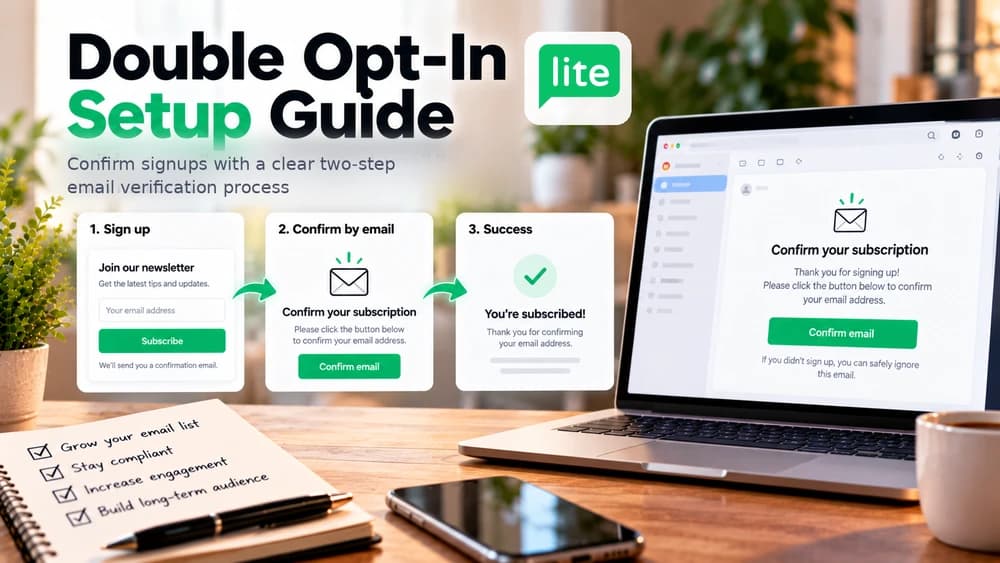
Make the subscription promise clear on each form and consider double opt-in when appropriate. If a list was imported from another system, confirm the consent records and the content people originally agreed to receive. MailerLite recommends permission-based signup methods and double opt-in to help filter automated signups and disengaged contacts. See its guidance on spam complaints: https://www.mailerlite.com/help/avoiding-emailing-subscribers-who-have-reported-email-as-spam.
Cause 6 — Too many inactive subscribers keep receiving campaigns
Sending repeatedly to people who have stopped responding can weaken engagement signals and raise the chance of complaints. MailerLite's Subscribers → Clean up inactive feature defaults to contacts inactive for the last six months who have received more than ten emails, but the correct threshold depends on your sending frequency. A monthly newsletter and a daily newsletter should not automatically use the same rule.
Save an inactive audience as a segment and inspect it before changing subscription statuses. If the original permission still supports it, offer a concise re-engagement message or a preference update; otherwise unsubscribe contacts appropriately. Open tracking is imperfect, so a missing open is not conclusive proof that a reader never read the email. A dedicated win-back workflow is covered separately in Claim26's MailerLite Re-Engagement Campaign guide. Official source: https://www.mailerlite.com/help/how-to-clean-up-inactive-subscribers.
Cause 7 — Sending frequency or volume changed too abruptly
An unexpected increase in sends after months of inactivity can look different from a regular newsletter delivered to an audience that expects it. The same applies when a business suddenly begins sending daily promotions to subscribers who registered for occasional educational updates. Mailbox providers do not publish a universal safe number of messages that guarantees inbox placement.
Return to a clear, relevant schedule and send only to an eligible segment while diagnosing the problem. Use MailerLite's Groups and Preference center to distinguish people who want weekly articles from those who prefer a monthly summary. Review changes gradually and record the result rather than launching several similar tests to the full list on the same day.
Cause 8 — The subject or email content looks misleading
Repeated aggressive claims, confusing sender names, deceptive reply prefixes, excessive capitalization and promises that do not match the email body can create distrust. But there is no universal banned-word list that determines whether MailerLite messages reach spam: filters weigh many signals together. A truthful subject that accurately describes what the subscriber requested is safer than swapping individual marketing words without addressing a weak list.
Write for the actual audience. For example, replace a vague subject such as 'URGENT: YOU HAVE WON' with 'Your requested website checklist' only when a checklist was actually requested and included. Use clear, readable paragraphs and a recognizable signature. Do not pretend the email is a personal reply or a security alert if it is a newsletter.
Cause 9 — Shortened, broken or suspicious links
MailerLite specifically advises avoiding URL shorteners in newsletters because they can hide the real destination and are commonly used in deceptive messages. Broken links, a mismatch between visible link text and the destination, and too many unrelated domains also make a campaign harder to trust. Check the actual destination before sending, especially if tracking or redirect services are involved.
In the campaign editor, preview the message and click each important link in a controlled test. Prefer clear, working links to relevant pages. Do not replace every legitimate tracking link blindly; distinguish MailerLite's normal campaign link measurement from a public shortener that masks a destination. The Inbox insights report can flag shortened or broken links when the feature is available on the account.
Cause 10 — Heavy images, poor HTML or an unusable text version
An email composed almost entirely of one large image is harder to read when images are blocked, can be inaccessible and may trigger content warnings in MailerLite's checks. Oversized images, broken image URLs, invalid custom HTML and missing plain-text content may also reduce the quality of the message. These are practical problems worth fixing even when they are not the sole cause of a spam placement.
Use a readable text introduction, alt text for essential visuals, appropriately compressed images and a genuine unsubscribe link. In the campaign builder, review the plain-text version and send yourself a preview. If you use the custom HTML editor, validate markup and avoid relying on unusual styling that common mail clients may ignore. Source: https://www.mailerlite.com/help/how-to-generate-an-inbox-insights-and-placement-report.
How to run MailerLite's Inbox insights and placement report
On MailerLite's Comfort or Power plan, create the campaign, complete the content and recipients, and continue to the Send or schedule step. Find the Avoid the spam filter suggestion and select Start check. The resulting Inbox insights and placement report estimates inbox versus spam placement across supported providers and shows a deliverability score with recommendations about links, domain authentication, content, the plain-text version and code.
Click How to improve it? to inspect the recommended changes, edit the campaign and run Check again if needed. The report currently covers Gmail, Microsoft, Yahoo, AOL, Mail.com, GMX and Zoho Mail, according to the official help page. It is **paid** on Comfort and Power, not a free feature that every trial user should expect. Its placement percentages are estimates, not proof that every recipient will see the same result. Source: https://www.mailerlite.com/help/how-to-generate-an-inbox-insights-and-placement-report.
A free troubleshooting sequence if you cannot use the paid report
Start with the domain-status check and campaign report, which are more informative than sending random copies of the same message. Send a permitted test to email addresses you control at two or three providers and note inbox versus spam placement; a tiny test sample cannot represent the entire audience. Open the message, review whether the From domain and content match expectations, verify all links, and inspect the campaign's plain-text version.
Next, compare a version with one well-defined correction while holding the audience and most content constant. For example, fix a broken redirect or authenticate the actual sending domain before making any speculative design changes. If the provider reports a bounce or rejection, follow that technical error rather than treating it as ordinary spam filtering. Do not use a new domain or disposable accounts to evade blocks or complaints.
A practical seven-step recovery checklist
1. Identify the affected recipients and providers. 2. Separate bounces from spam-folder delivery. 3. Check the domain status and the correct MailerLite SPF/DKIM records. 4. Review DMARC alignment and the sender address. 5. Inspect recent complaints, bounces and list origins. 6. Repair links, content and excessive image weight. 7. Test a small consented segment before changing the next full campaign. Keep notes and revert a change that breaks another sender.
For an illustrative diagnosis, imagine a newsletter reaching Gmail but repeatedly appearing in Junk at some Outlook accounts. Confirm that SPF, DKIM and DMARC are aligned, check that the problem is truly provider-specific, and compare test outcomes with MailerLite's report if available. Those are hypothetical steps, not actual measurements or a proven cure. If the sending server returns a rejection or the domain keeps failing authentication, escalate to MailerLite support or your DNS host with the exact errors.
What if MailerLite says delivered, but the reader received nothing?
Ask the opted-in reader to search for the sender and subject across Inbox, Promotions, Spam and other folders, and check that their address is correct. If MailerLite recorded a bounce, inspect the campaign report and address status. If there was no bounce, review recipient-specific filtering and the provider involved. Some business mailboxes have organizational security rules that a newsletter platform cannot override.
Do not claim delivery to the main inbox merely because the MailerLite status says Delivered. Similarly, a test that reaches your own Gmail Inbox cannot prove every subscriber's Outlook or Yahoo experience. Keep personal mailbox details private when sharing diagnostic evidence with support, and obtain permission before inspecting another person's message headers.
Should you upgrade MailerLite to fix spam placement?
Buying a paid plan is not an automatic fix for a weak sender reputation, a misconfigured DNS record or an unwanted mailing list. The paid Comfort and Power plans offer the Inbox insights and placement report, which can make pre-send diagnosis more convenient, but the underlying work—permission, technical authentication, reliable links and relevant content—still matters.
Choose the plan based on the diagnostic tools and sending capacity you actually need. MailerLite's free-plan limits and prices can change; confirm the current offer before purchasing. Claim26 may receive an affiliate commission if you subscribe through the disclosed MailerLite links, at no extra charge to you. This article is based on the provider's published guidance and illustrative workflows; Claim26 did not run a paid deliverability test or measure a real recovery rate.
Check these four signals.
✓Diagnose bounces versus junk-folder placement
✓Verify sending identity and authentication
✓Review list quality and unsubscribe access
✓Test links, message content and provider-specific behavior
The safest way to choose is to build a small real-world workflow.
Test the part of the customer journey that matters most before moving your entire system.
Official sources for this guide
Software pricing and features can change. Review the official documentation below before choosing a product or plan.