Fix Elementor Mobile Layout Issues: Containers, Text and Hidden Elements
Reproduce the live-page defect, locate the relevant V3 or V4 responsive control, fix container widths or visibility, then retest at real browser widths.
Reproduce the mobile problem before touching your design
A landing page may look polished on your laptop but leave a horizontal scrollbar on a smaller phone. Rather than changing every margin, open the published WordPress page in a real mobile browser and write down what fails: a wider-than-screen image, a hidden call-to-action, too many cards on one row, or a headline that takes over the first viewport.
Compare the same URL at two phone widths and a tablet width. Elementor's preview is a useful starting point, but the real page helps separate layout problems from editor-only behavior or old cached assets. Save a working version before changing an important live page. The example is illustrative; Claim26 has not conducted an Elementor account test.
Find the right instructions for Editor V3 or V4
Elementor has more than one editing interface. The classic V3 widget controls commonly expose device visibility through Advanced and Responsive. Editor V4 documents responsive properties under the Style tab, including Layout for whether an element is displayed. Treat tutorials that use these two different interfaces interchangeably with caution.
Open your actual page in Elementor, select a problematic element and switch device preview from the editor's upper controls. If you cannot find the exact setting shown in a tutorial, confirm your editor generation and whether the page uses classic sections or newer containers. Do not rebuild the layout simply because a menu has moved.
Understand breakpoints and inherited responsive styles
Elementor describes its default breakpoints around 1,024 pixels for desktop versus tablet and 767 pixels for tablet versus mobile. These are viewport widths, not a reliable measure of whether someone owns a particular device. Sites can add custom breakpoints, so the thresholds shown in your project are the authoritative ones.
Responsive values cascade downward unless a device-specific value overrides them. In the Editor V4 documentation, a font size from desktop applies to tablet and mobile until those smaller modes define their own value. If a phone headline still looks oversized, inspect the tablet-specific setting rather than assuming mobile inherited the original desktop value.
Find the element causing horizontal scrolling
Common culprits include fixed-width widgets, oversized horizontal margins, images larger than their containers and Flexbox items forced to stay on one line. Select the outer container and check its width, side spacing, Wrap setting and the child widths at the phone breakpoint. Work from the outer layout inward instead of randomly hiding individual sections.
Flexbox containers can switch direction from Row on desktop to Column on smaller screens so content stacks. Use the space between items deliberately, then check whether a nested element still forces the page wider than the viewport. Avoid a blanket overflow-hidden fix at the body level: it may conceal an essential button while leaving the underlying problem unchanged.
Make a two-column hero stack in the right order
Imagine a restaurant website with a short booking message and a photograph arranged side by side on desktop. On a narrow phone, the same blocks need a logical single-column arrangement. Elementor supports responsive container direction changes and custom ordering, so one set of elements can serve multiple layouts without copying the whole section.
Choose an order that lets visitors understand the offer and reach the primary action without unnecessary scrolling. Be careful with visual-only reordering: what appears first visually may not be first for assistive technologies or keyboard navigation. Keep the underlying content order sensible whenever possible, and test after any reversal.
Resize headlines without sacrificing readability
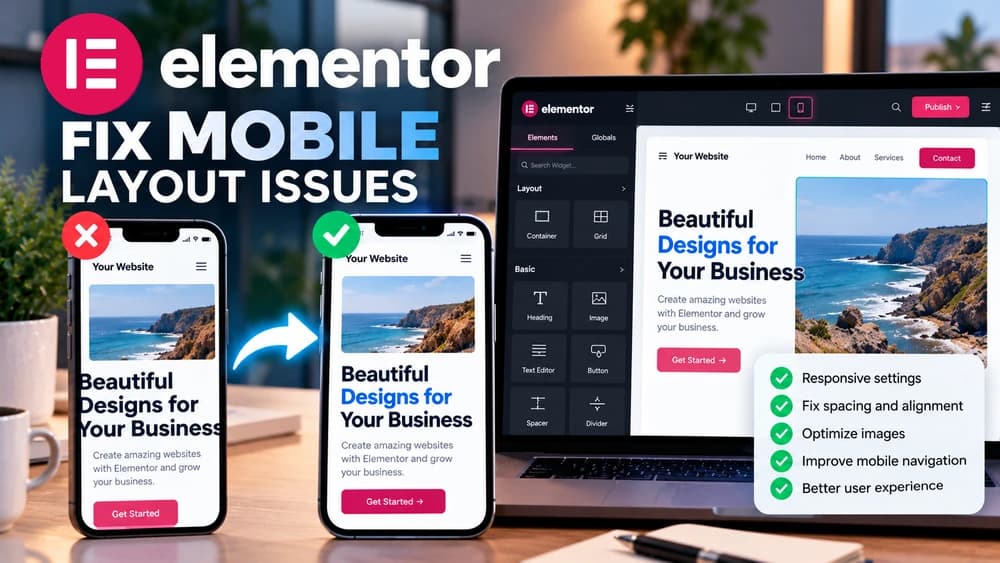
Large desktop typography is often the first source of awkward phone layouts. Open the responsive typography control for the actual Elementor editor you use, then reduce heading size and line height while checking word breaks. Aim for a clear hierarchy instead of squeezing a three-line desktop heading into the exact same dimensions on mobile.
Review paragraph line lengths, button labels and spacing next. Buttons should remain easy to tap and the text should not collide with icons or clip against the sides of a container. A small CSS or layout adjustment can often make a page usable without a new plugin, a Pro upgrade or an entirely new page template.
Fix cropped images and background positioning
A background photograph built for a wide monitor may cut off a product or person when it fills a tall phone layout. Review the image's position, the container height and any device-specific background settings. For a regular image widget, keep its proportions natural and ensure it can shrink within the available width.
Do not judge only by whether the image URL returns successfully. Inspect the published page to see whether the subject remains recognizable at narrow widths. A loaded but badly cropped picture can still break the message. Prefer layout or background-position adjustments before uploading a larger replacement file.
Recover hidden widgets and important CTA buttons
If an element disappears on mobile, check device visibility before deleting and recreating it. In the classic V3 editor, the Responsive section inside the Advanced panel contains Hide On controls. In Editor V4, the documented route to device-specific hiding is Style, then Layout, then Display: None. The location is deliberately different.
Use the Structure panel if the invisible element cannot be selected directly. Review any custom CSS rule that might override its visibility, and do not confuse dynamic display conditions with screen-size visibility. Once the element is visible again, verify that it can actually be clicked or submitted on the live page.
When the Elementor preview and public page disagree
Sometimes an Elementor adjustment appears correct in preview while the published page still uses stale styles. Check browser caching, WordPress caching layers and any server cache before reworking the same layout twice. For some generated-CSS synchronization issues, Elementor documents the Regenerate Files & Data tool as a troubleshooting option.
Use a staging copy when experimenting with conflicting plugins or extensive custom CSS. Refresh the actual public URL in a private browser session after the relevant cache or files are updated. A change is not verified merely because a setting panel contains the desired value; the rendered mobile page is the final thing visitors experience.
Finish with a practical multi-device release check
Open the live page at representative phone, tablet and desktop sizes. Read a complete section, inspect the menu, use the main CTA and submit only a controlled test form when authorized. Confirm no horizontal page scroll, no clipped labels, no unintended hidden elements and no essential visual subject lost to cropping.
Claim26's separate guides explain creating the first Elementor page, global design settings and choosing Free versus Pro. This guide is specifically about repairing the mobile layout of an existing page. Responsive controls alone do not prove conversions or search rankings; record those separately if you have reliable site analytics.
Check these four signals.
✓V3/V4 editor difference understood
✓Container widths and stacking reviewed
✓No important hidden CTAs
✓Real public URL checked on phone/tablet/desktop
Need the bigger picture before choosing a plan?
Open the current offer and check Elementor pricing, limits and features before deciding on a subscription.
Official sources for this guide
Software pricing and features can change. Review the official documentation below before choosing a product or plan.