ElevenLabs Scribe v2: Transcribe Audio and Video
Upload an authorized file, review speaker and word timing, correct terminology and export a transcript for subtitle editing.
Scribe converts speech to text, unlike a voice generator
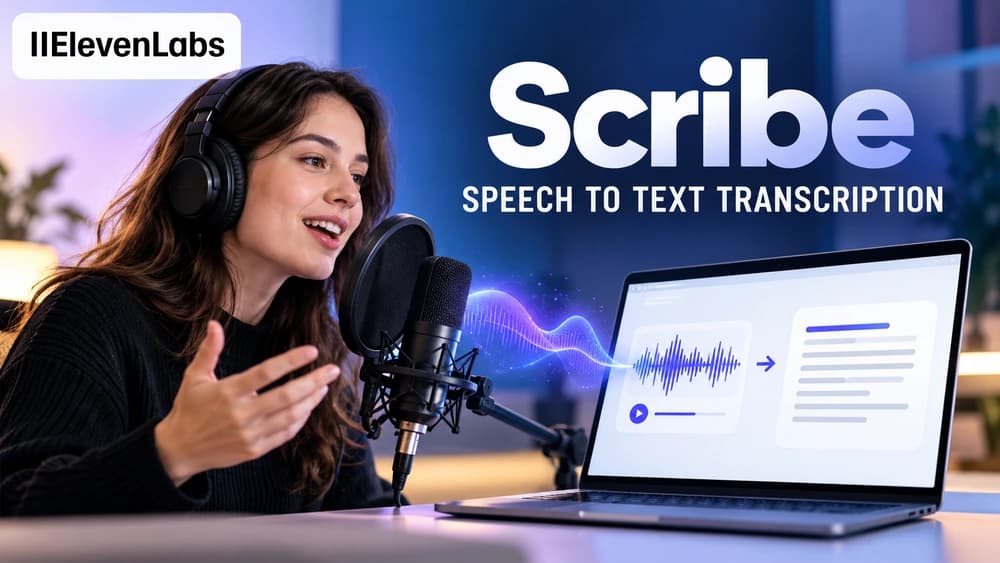
ElevenLabs Scribe v2 turns existing audio or video recordings into text. Text to Speech does the opposite, creating audio from a written script. Word-level timing and optional speaker separation make transcription useful for interview notes, captions and locating statements in a recording.
Imagine a fictional three-minute interview with two people. A helpful result is more than a believable paragraph: an editor needs correct names, dependable time references and an accurate record of each speaker. This guide does not claim that Claim26 ran Scribe or measured its accuracy.
Step 1 — Check recording rights before uploading
Obtain appropriate permissions before sending another person's voice or confidential material to a third-party processing service. Private meetings and sensitive client recordings can contain personal data. Technical access to a file uploader does not establish the legal right to process or redistribute a recording.
Choose a short representative sample with clear speech, an unusual name and perhaps a second speaker. Keep the original file as a reference. Listening to that recording is essential for catching missing negatives, made-up proper names and other recognition errors.
Step 2 — Upload audio or video in Speech to Text
Open ElevenLabs Speech to Text and use the Upload files action described in its official product documentation. Audio and video file imports are supported, with a documented limit up to 3 GB, subject to current account controls. Select the relevant language and review the available model options.
Scribe v2 transcribes prerecorded files; Scribe v2 Realtime processes a continuous live stream. Neither operation is the same as Text to Speech, which synthesizes a new audio track. Choosing the correct workflow avoids unnecessary complexity and spending.
Step 3 — Review the recognized words against playback
Open the processed file from the workspace list. ElevenLabs explains that clicking a word in the transcript can start playback near that point. Check proper nouns, numbers, dates, technical vocabulary and quoted statements rather than assuming polished punctuation means perfect accuracy.
Automated transcripts can silently change meaning. When a quotation is sensitive, return to the original recording and verify it before publication. Keep corrections to misrecognized words distinct from editorial rewriting that changes what the speaker actually said.
Step 4 — Verify labels from speaker diarization
Diarization divides a recording into segments tagged with technical speaker labels. ElevenLabs documents support for up to 32 speakers in compatible workflows, but those labels are not verification of a person's real identity. Overlapping voices and abrupt cuts can confuse the model.
The product interface allows speaker labels to be renamed. Before assigning real names, listen to each change in the fictional two-person interview. Correcting mistaken speaker labels can matter as much as editing an individual word.
Step 5 — Handle unusual names with care
Specialist vocabulary, brand names and acronyms can be misheard. The ElevenLabs Scribe v2 API supports keyterm prompting to guide recognition toward selected phrases, but official documentation warns that this advanced option adds cost. A developer parameter is not necessarily an option in the browser editor.
Start with a small standard transcription and list the mistakes that matter. If only two or three names need correction, editing them manually may be cheaper and simpler than enabling an advanced billed API option. Always check the current plan and terms before running extensive jobs.
Step 6 — Use word-level timing to create captions
Scribe can provide start and end timestamps for recognized words. They help align subtitles with speech, yet they do not automatically produce perfect line breaks or reading times. Group words into manageable caption blocks and preserve meaningful speaker changes and pauses.
Review the resulting captions in a video player, including on a phone-sized display. Check long lines, incorrect names and sound cues that viewers need to understand the scene. Timecoded text is a useful draft, not proof that finished video captions meet every accessibility need.
Step 7 — Export a useful deliverable
The official ElevenLabs product guide includes an Export button for downloading transcripts in available formats. Inspect the exact options offered in your workspace and choose a result supported by your video editor or text-processing workflow. API response formats do not always match what is available in the Web UI.
Open the exported file and inspect its text encoding, punctuation, timecodes and speaker attribution. Preserve both the original machine transcript and a corrected version so edits can be reviewed and the source remains traceable.
Step 8 — Decide between file transcription and realtime
A prerecorded podcast or interview is a suitable use case for batch transcription because the entire recording can be checked before distribution. Scribe v2 Realtime is a separate technical workflow that receives audio continuously and returns recognition as speech arrives.
If you transcribe only one episode per week, building a WebSocket integration may be unnecessary. Choose the simplest allowed workflow that gives you text you can review, and use an API when volume, integration requirements and cost make it worthwhile.
Pricing, privacy and common questions
ElevenLabs offers a free credit allowance and paid subscriptions, but the usable transcription minutes depend on the model and current plan conditions. Check its live Speech to Text pricing page instead of assuming a fixed lifetime conversion of credits to minutes. Keyterm prompting and some other advanced API controls may incur surcharges.
Can you upload a video? Yes, according to the product guide. Do timestamps make captions publication-ready? Not without human review of language, segmentation and timing. For creating voiceovers from scripts, use the separate Claim26 narration guide; for translated speech replacement, see the dubbing guide.
Check these four signals.
✓Source permission checked
✓Speaker attribution verified
✓Timestamps reviewed against audio
✓Advanced feature prices confirmed
Need the bigger picture before choosing a plan?
Open the current offer and check ElevenLabs pricing, limits and features before deciding on a subscription.
Official sources for this guide
Software pricing and features can change. Review the official documentation below before choosing a product or plan.