Moving from Mailchimp to MailerLite: A Safer Migration Checklist
Before migrating from Mailchimp to MailerLite, protect consent states, map contact fields, rebuild advanced segments, reconnect signup flows and test the first send.
A clean migration starts with an inventory, not the import button
Before leaving Mailchimp, list every audience you use, what each signup form promises, which tags drive campaigns, and which automated journeys still send email. Note the domain used for marketing messages and any paid account features that your processes depend on. Moving addresses is only one part of changing email service providers.
Separate functions that must work on day one from features you can rebuild later. A welcome series triggered by a paid lead form belongs in the first group; a rarely used template may not. This gives you a measurable migration checklist rather than an unfocused goal of making every dashboard setting look identical.
Do not cancel the original service yet. Decide how new subscriptions will be handled during the transition so you know whether Mailchimp or MailerLite is the current source of truth at every stage.
Export contacts while preserving their original permission states
Mailchimp can export an entire audience or selected segments and tags. The downloaded archive may contain separate files for subscribed, non-subscribed, unsubscribed and cleaned contacts. Keep these classifications separate: a person who opted out must not quietly reappear as an active marketing subscriber in your destination account.
An ordinary audience export does not include campaign-report metrics such as an individual's historical open or click rates. If you need that reporting history, export the relevant reports separately and check exactly what they contain. Treat a data export as a backup of specified fields, not a full copy of the old service.
Store the CSV or ZIP archive in a protected location with limited access, document why you need to retain it, and remove it when your retention purpose ends. Migrating a record between platforms does not create fresh marketing consent.
Choose the built-in Mailchimp importer or a controlled CSV import
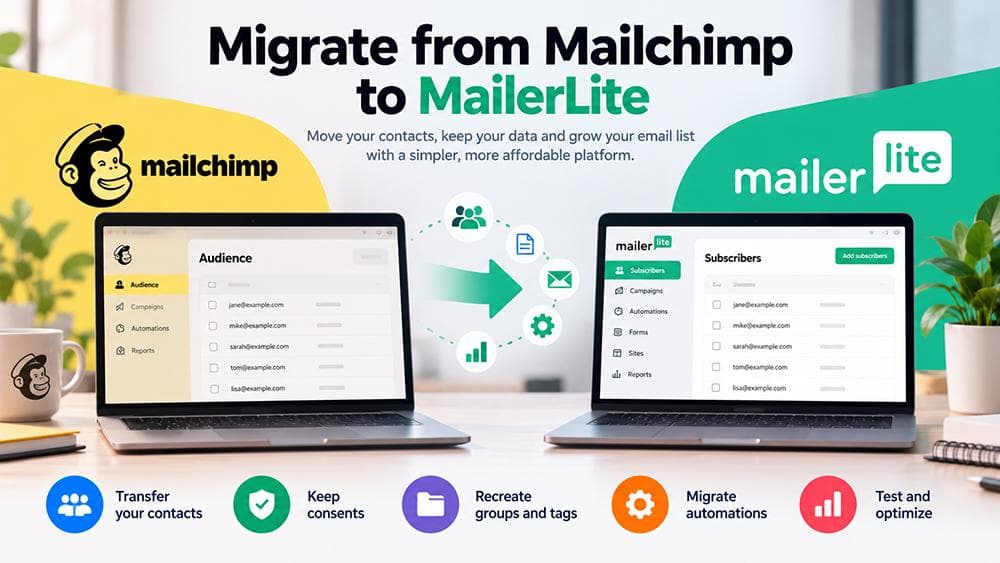
In the current MailerLite interface, open Subscribers, select Add subscribers and find Import from Mailchimp. The supported path lets you authorize your Mailchimp account using credentials or an API key. Read the access request before approval and keep any API key private; older MailerLite Classic accounts can have a different interface.
MailerLite can automatically map familiar contact fields or let you map each one yourself. Review email, name, custom fields, signup details and any opt-in evidence that matters to your compliance process. Ignore an internal identifier such as contact_id unless you have a specific, legitimate use for it in your own records.
A CSV import may be appropriate for a controlled migration or backup comparison. Regardless of the route, compare the import summary with your starting figures and investigate unexpected exclusions or field changes before allowing the list to receive a campaign.
Translate Mailchimp tags into groups but rebuild advanced segments
Mailchimp tags and MailerLite groups can serve similar organizational purposes. In MailerLite's direct importer, the option to create groups for each Mailchimp list and tag can preserve much of your label-based structure. The alternative of putting everybody into one group is simpler, but it discards that distinction unless you recreate it later.
Do not treat a segment as just another tag. A segment is typically defined by rules, such as a field value or a condition about behavior. MailerLite explains that simple field-based segments can be recreated during migration, while advanced behavioral, ecommerce or historical activity conditions cannot be imported automatically.
For a tangible example, a Mailchimp tag called Customer can become a MailerLite group named Customer. A segment such as purchased recently and clicked a particular campaign may need a completely new rule and a different data source. Write down its original conditions, test the new logic and compare a small sample of expected members.
Protect unsubscribed and unconfirmed contacts at every step
MailerLite lets you choose whether to bring across unsubscribed and unconfirmed contacts in the direct import. These are stored separately from Active subscribers and are not eligible to receive ordinary newsletters through their imported status. Preserving that status is not the same as asking them to subscribe again.
If you maintain suppression or unsubscribe information outside Mailchimp, reconcile it as well. A skipped file, manual CSV merge or incorrectly mapped status can undo part of your compliance process even when the total number of imported addresses looks right.
When checking consent, focus on what the person agreed to receive, when and by what method. Do not claim that consent was transferred successfully just because an email address appears in MailerLite.
Make an explicit choice when duplicate fields conflict
The MailerLite importer provides different ways of handling a person who already exists in the destination account. Update missing info only fills gaps, while Overwrite all fields replaces existing information with the imported values. The provider specifically warns that blank fields in the incoming file can erase existing data under the overwrite option.
If your two platforms contain conflicting first names, customer classifications or custom fields, review the differences before deciding which version should win. Running a small representative comparison is safer than selecting overwrite as an automatic shortcut for every column.
Keep a short record of which source controls each important field. That document is useful again when you reconnect your signup forms, integrations and CRM.
Rebuild forms, landing pages, templates and automations separately
The built-in importer transfers subscriber information; it does not magically rebuild all the customer-facing experiences connected to Mailchimp. Inventory every embedded form, landing page, saved template, welcome sequence and condition-based automation. Rebuild them in MailerLite and test their behavior one by one.
For a form, verify where the subscriber arrives, which group is assigned, whether confirmation works as intended and whether the mobile form is usable. For an automation, verify the trigger, waiting period, branch logic, exclusions and unsubscribe handling using test contacts rather than real customer traffic.
MailerLite also documents a Sync again option for changes made in Mailchimp after the first import. That is useful for a transitional refresh, but it is not a guarantee of continuous live synchronization. Record the final cutover time and reconcile new contacts or status changes since the original import.
Authenticate your domain and run a reversible launch checklist
MailerLite recommends authenticating the sending domain before completing the move. Follow the provider's domain-verification instructions and review existing senders before changing SPF or DKIM records. If you use a shared domain for Google Workspace, Microsoft 365 or ecommerce notifications, avoid replacing its authentication settings blindly.
Send a test message, check how it displays and verify that important links work. Trigger a representative signup and onboarding journey. Make sure a contact who has unsubscribed is excluded. Monitor the first genuine campaigns carefully without attributing changes in deliverability or revenue to the migration without data.
Only after the flow works should you redirect the live forms and consider ending the Mailchimp plan. Keep your rollback notes, but do not keep unnecessary personal-data archives indefinitely. This is a recommended testing process, not a migration Claim26 claims to have performed or measured.
Frequently asked questions about Mailchimp to MailerLite migration
Can I migrate without a CSV file? Yes. MailerLite documents a direct importer that connects to Mailchimp, with either account authorization or a configured API key. A CSV export remains useful as an independent backup and audit trail.
Will all my Mailchimp segments still work? No. Only certain simple, field-based segments can be recreated automatically. Any segment using behavioral, ecommerce or historical conditions needs to be reviewed and likely rebuilt manually.
Can I send to my old unsubscribers after the move? Not just because their addresses were exported. Import their statuses accurately and respect applicable marketing-permission rules; moving providers does not override their decision.
Does syncing contacts also move my website forms and automations? No. Plan separate reconstruction and end-to-end tests for each critical workflow, plus a sending-domain check.
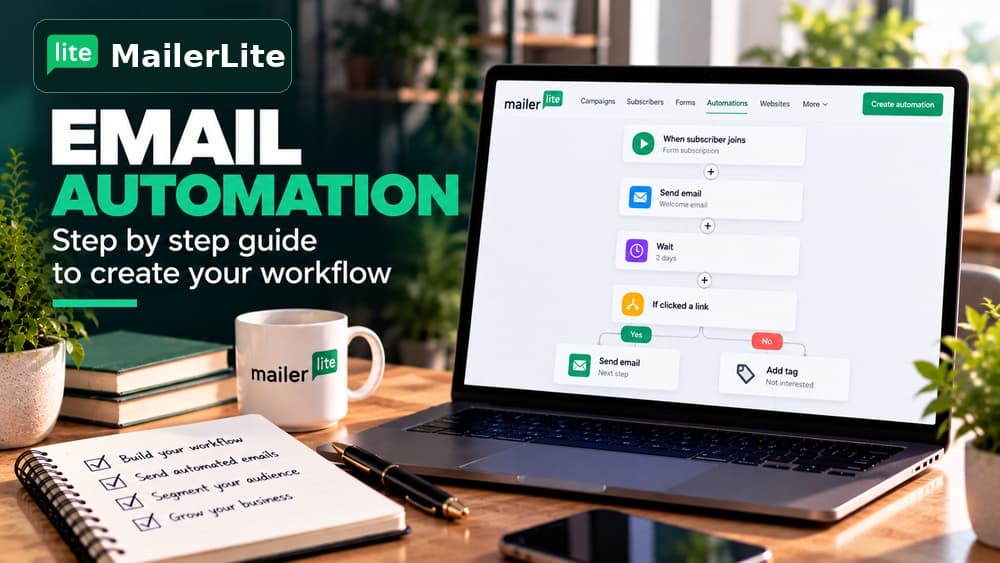
What should I compare before switching? Read the Claim26 MailerLite review for the product decision, the MailerLite automation guide for rebuilding sequences and the domain-authentication tutorial for safe sending setup.
Check these four signals.
✓Mailchimp active and suppressed contacts are recorded separately
✓Important field mappings and duplicate-handling rules are checked
✓Advanced segments, automations and embedded forms are rebuilt
✓MailerLite sending-domain authentication and test flows have been verified
Need the bigger picture before choosing a plan?
Open the current offer and check MailerLite pricing, limits and features before deciding on a subscription.
Official sources for this guide
Software pricing and features can change. Review the official documentation below before choosing a product or plan.