MailerLite RSS to Email: Automatically Send New Blog Posts
Use a public RSS feed to send scheduled blog digests, but confirm paid-plan access and reliable GUIDs, links and images before enabling the campaign.
What RSS-to-email does and how it differs from a welcome sequence
An RSS campaign reads newly published articles from a website feed and sends a newsletter on the schedule you configure. MailerLite can use the latest post titles, summaries and images rather than having an editor copy every update into a new message. The RSS feed is the content source; this is not the same as a welcome automation triggered when someone subscribes.
Consider a fictional regional hiking publication releasing two field guides a week. Its readers have opted into a Friday digest and expect the newest posts in one useful message. This is an illustrative workflow, not a campaign that Claim26 has set up, sent or benchmarked in a real MailerLite account.
Check paid-plan access before building the workflow
MailerLite's official RSS help page identifies automated RSS campaigns as a paid feature on its Comfort and Power plans. Do not confuse a temporary premium trial with permanent inclusion in the Free tier. The precise offer visible inside a customer's account should be checked before assuming an automated RSS campaign will keep running after a plan or trial changes.
If your site publishes only a few posts a year, manually assembling an ordinary newsletter may be more sensible. Automated weekly delivery provides more value when publishing is consistent and readers actually requested a digest. This guide explains the paid feature without recommending that someone upgrade before the workload justifies it.
Find a public RSS feed rather than guessing its address
A standard WordPress site may expose a feed at its domain plus /feed, and other sites may advertise an application/rss+xml link in their page source. A custom Next.js blog, a sitemap and a website category page are not automatically valid RSS feeds. Copy the real address from the publisher or inspect the site's source instead of assuming that every site supports /feed.
Open the feed without signing into a private account. It should return entries with stable links, titles and publication metadata. An RSS service cannot reliably read a private, broken or intermittently inaccessible feed. Fix the feed at the publisher before trying to debug the newsletter builder. For a working example, Claim26 publishes its English feed at https://www.claim26.com/en/feed.xml, with the latest article titles, dates and images.
Create the correct MailerLite campaign from the start
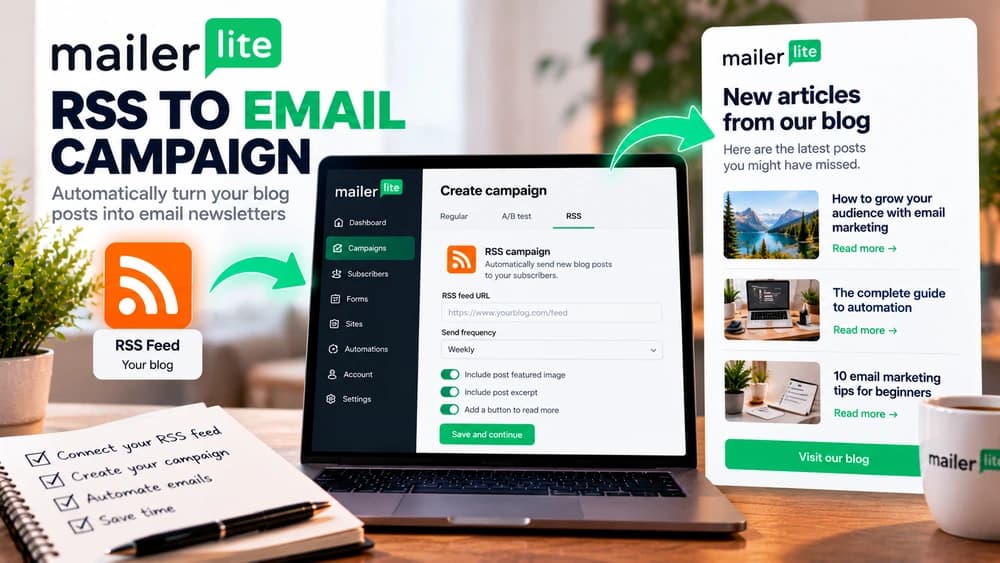
Go to Campaigns, choose Create campaign, and select RSS campaign as its type. MailerLite states that campaign types cannot be switched after creation, so make the decision before investing time in a design. Supply an informative subject line, a genuine sender identity, a language and appropriate tracking settings, then move to the RSS options.
Paste the entire feed address including https://, and select a relevant opted-in subscriber group. The fact that a visitor reads your public website does not mean that person agreed to receive marketing email. Build a subscription and unsubscribe process that fits your audience and applicable requirements.
Choose a schedule and decide whether old posts should reappear
Set the daily, weekly or monthly frequency, plus the desired day and send time. MailerLite reads the feed around five minutes before a scheduled send. That means an article going live right at the deadline may miss the current edition and become eligible later. For an irregular editorial schedule, a weekly digest often feels less intrusive than immediate updates.
The Show only new posts option limits the campaign to entries published after setup or since the previous RSS mailing. The articles displayed inside the campaign editor during configuration are examples, not necessarily the exact content that will be sent on the scheduled date. Review that distinction before turning the campaign on.
Build a useful template and diagnose missing featured images
Choose a design containing the Blog and RSS content blocks. You can include the post title, excerpt or featured image depending on what the feed exposes. The RSS campaign displays excerpts and full content according to the feed's formatting rather than allowing you to style each individual article as freely as in a standard editorial email.
MailerLite looks for featured media tags and may fall back to the first image in the content or description. If a campaign shows a blank tile or picks the wrong illustration, inspect the feed output. An attractive image on the blog's public webpage does not prove that image exists in the RSS XML consumed by the newsletter service.
Keep article GUIDs stable to prevent accidental repeat sends
Many RSS entries contain a GUID, an identifier the service uses to decide whether the item is new. Changing a post's body text normally does not cause it to be sent again when the GUID remains the same. However, a feed generator that replaces the GUID whenever a post is updated can make an old article look new to MailerLite.
Test a simple edit in a staging environment if you control the publisher: correct a typo while preserving the article identity, and check whether its GUID remains stable. Where no GUID exists, changes to the link may influence recognition. Do not claim the system sent a real test message unless you have actually observed the result.
Diagnose a missed digest or repeated old articles
If the newsletter never arrives, check whether any new entries exist, whether the feed can be reached publicly, whether its dates are correct and whether the paid feature remains enabled. MailerLite checks the feed shortly before the scheduled time, so a temporary outage or malformed XML at that point can stop the campaign.
If an old post is unexpectedly re-sent, inspect changed GUIDs or URLs and the campaign's Outbox history. MailerLite explains that canceling and rescheduling an RSS campaign can prevent the usual comparison with previously sent campaigns, resulting in a fresh batch of recent posts. Investigate the identifiers before blaming email deliverability.
Automated RSS campaign versus RSS blocks in a regular email
An automated RSS campaign follows a single feed and reuses its template at scheduled intervals. A regular email campaign can contain multiple RSS blocks drawing from separate feeds and can give an editor more freedom to customize certain pieces of content. A regular campaign does not become a recurring scheduled RSS broadcast merely because an RSS block was added.
That distinction affects both work and cost. The automatic campaign is explicitly documented as paid, while the availability of the individual editor controls should be confirmed in the actual account. If sending a hand-curated digest once a month takes little effort, the fully automated system may not yet offer a meaningful advantage.
Final prelaunch checklist and related resources
Before activating a recurring RSS email, confirm the public feed URL, allowed subscription plan, opted-in recipients, New posts behavior, schedule, time zone, email design, images and unsubscribe route. Preview on a phone and retain an easy way to pause the campaign. Creation in the dashboard is not proof that a real email was delivered; review the first actual sends and the available report.
For a subscriber welcome sequence, use Claim26's separate MailerLite automation guide. For sender identity and DKIM/SPF setup, see the domain authentication walkthrough. If the current budget is uncertain, compare the MailerLite Free-plan and review guides instead of buying a paid RSS feature solely because it is available.
Check these four signals.
✓Public feed and stable article identifiers
✓Current plan eligibility checked
✓New-only option and send schedule reviewed
✓Email images and real send results verified
Need the bigger picture before choosing a plan?
Open the current offer and check MailerLite pricing, limits and features before deciding on a subscription.
Official sources for this guide
Software pricing and features can change. Review the official documentation below before choosing a product or plan.