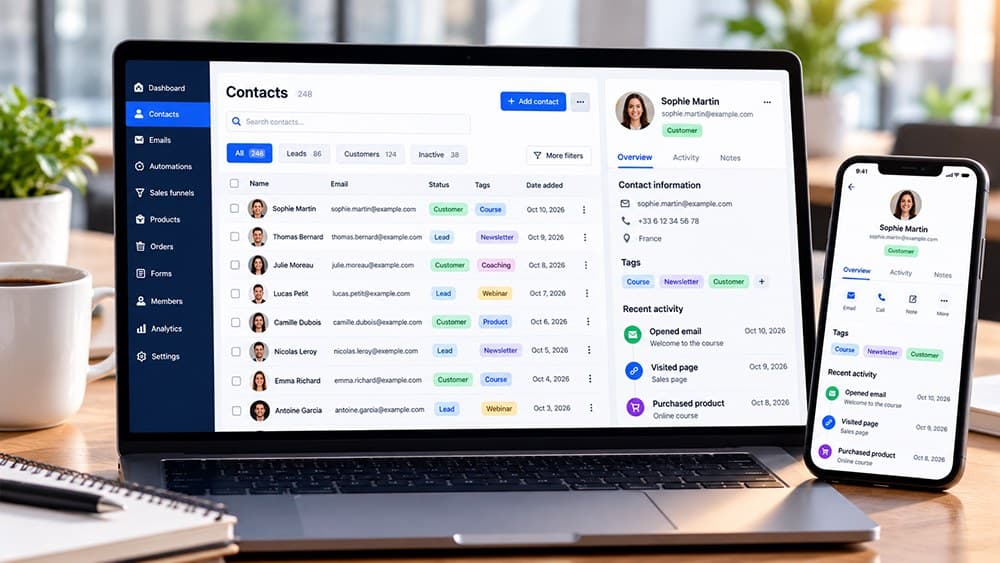
How to Import Contacts Into Systeme.io in 2026: CSV, Tags and Campaigns
Import only contacts you are allowed to email, use a clean CSV and verify field mapping on a small sample first. Systeme.io can also preserve campaign position when the required migration data is available.
Clean the list before the CSV ever reaches Systeme.io
Do not import addresses simply because they exist in an old database. Systeme.io explicitly requires imported contacts to have given permission to receive your communications and forbids purchased or scraped lists.
Remove obvious invalid addresses, duplicates and contacts who have unsubscribed. Starting with a smaller engaged list protects deliverability better than moving every historical address into the new account and trying to repair reputation later.
Prepare a simple CSV with clear column names and one contact per row
Systeme.io imports contact lists from CSV files and lets you choose common delimiters such as comma, semicolon or pipe. Keep the first row understandable so field mapping is easier when the file reaches the import screen.
Email is the essential contact identifier, while columns such as first name and custom data can be mapped where useful. Remove decorative spreadsheet formatting and formulas before export because the import only needs clean data values.
Import from CRM contacts and apply only the tags that describe this list accurately
Open CRM, Contacts and Import contacts, then choose the correct CSV delimiter and upload the file. Systeme.io lets you apply a tag during the import, which can be useful for recording the list source or migration cohort.
Do not assign a broad marketing tag just because the option is available. Tags can later trigger automation and targeting, so the label should reflect something you can defend operationally, such as origin, product interest or migration batch.
Map every column before you start the full import
The import screen asks you to identify the type of each relevant CSV column. Check email, first name and any custom fields carefully before confirming because a mapping error can make otherwise valid data difficult to use after import.
Run a small test file first when the list contains several custom fields. Open the resulting contact records and confirm that the data landed in the intended fields before repeating the process with thousands of contacts.
Preserve campaign position only when you have reliable migration data
Systeme.io currently supports subscribing imported contacts to a campaign and can use columns for the last sent email number and last sent email date when migrating an existing sequence. This helps avoid restarting every subscriber at message one.
Use those options only when the source data is trustworthy. A wrong campaign position can cause contacts to receive duplicate or out-of-sequence messages, so validate a few migrated records before using campaign continuity across the full list.
Verify contact count, tags and deliverability signals after the import
After the import completes, inspect several records and compare the total number of contacts with the source CSV. Check names, tags, custom fields and campaign enrollment rather than assuming that a successful upload means every mapping is correct.
When the list comes from another platform, begin sending to the most engaged contacts and monitor bounces, complaints and unsubscribes. Migration quality is measured by how reliably the new list behaves, not only by how many rows were imported.
Check these four signals.
✓The list contains only contacts with valid permission
✓CSV columns and delimiter are checked before upload
✓Tags and campaign mapping have an explicit purpose
✓A small test import is verified before the full database moves
Need the bigger picture before choosing a plan?
Open the current offer and check Systeme.io pricing, limits and features before deciding on a subscription.
Official sources for this guide
Software pricing and features can change. Review the official documentation below before choosing a product or plan.