How to Download ElevenLabs Audio: MP3, WAV, FLAC & M4A
To download ElevenLabs speech as MP3, WAV, FLAC or M4A, open Text to Speech History, select the recording and use Download; Advanced reveals additional formats and bitrates. Studio uses a separate Export workflow.
The short answer: where ElevenLabs puts your audio downloads
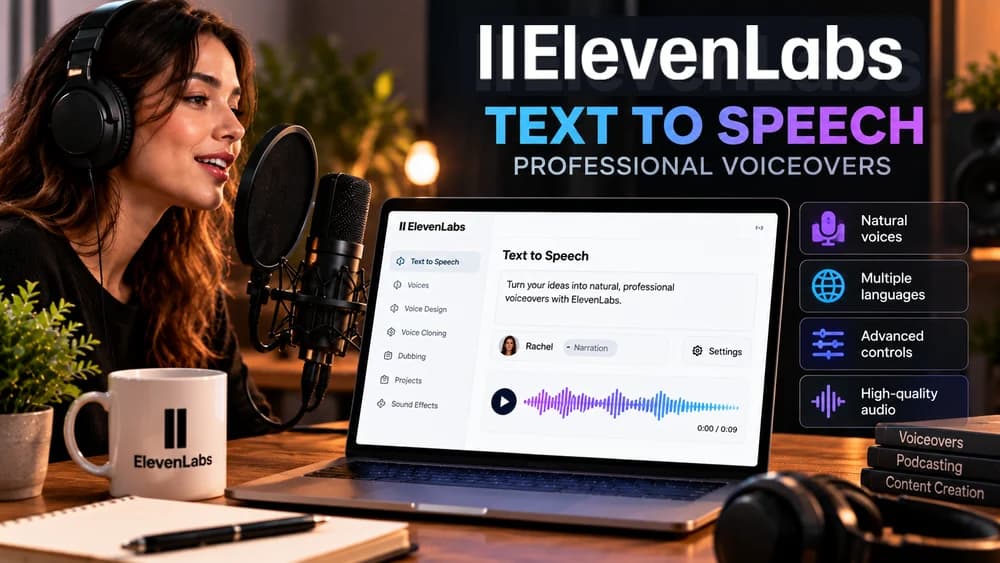
For audio made with ElevenLabs Text to Speech, the quickest download is the button at the bottom right after you generate a clip. For a WAV, FLAC, M4A or a different MP3 bitrate, open Text to Speech and its History panel, then use the download menu on the generation you want. MP3 at 128 kbps and WAV are shown directly; Advanced provides MP3 at 192 or 256 kbps, M4A and FLAC. These are the options described in ElevenLabs' current help center, not the result of an independent Claim26 account test.
Do not confuse the Text to Speech history with ElevenLabs Studio project exports. A long-form audiobook, a regenerated chapter and a single speech clip do not necessarily share the same download controls. This guide first covers the everyday Text to Speech and Voice Changer workflow, then explains the separate Studio route and what to check before publishing audio.
Step 1: download a fresh Text to Speech recording
Sign in to ElevenLabs, open Text to Speech, select your voice and model, enter the script and generate the recording. Listen once before downloading: pay attention to the first and last word, pauses, names, numbers and unintended breaths. If anything is wrong, correct the script or voice settings rather than assuming a different file format will repair the performance.
When the generated clip is displayed, use the download button at the bottom right to save the file. Give it a descriptive name immediately, such as product-intro-en-v01.mp3, and store it in the folder for that project. If you need an advanced format or a different bitrate, proceed through History instead of hunting for those controls on the initial generation screen.
Step 2: use History for MP3, WAV, FLAC or M4A
In the sidebar choose Text to Speech, then open the History tab on the right of the workspace. On a narrow display the history icon can appear above the Generate speech button. Find the relevant clip, play it if needed and select its download icon. According to ElevenLabs, that menu offers an MP3 at 128 kbps or a WAV file immediately.
Choose Advanced in the download menu to see MP3 at 192 kbps, MP3 at 256 kbps, M4A and FLAC. Download one format, check the file extension and play the full recording before deleting any backup. These steps are specific to generated speech and may be presented differently if ElevenLabs changes its interface or your account has different audio-quality entitlements.
MP3 at 128, 192 or 256 kbps: which setting makes sense?
MP3 is the convenient default for spoken audio distributed through websites, email, learning platforms or everyday editing software. A 128 kbps file is usually smaller than a 192 or 256 kbps version of the same duration. Higher bitrates can preserve more encoded detail, but the audible difference depends on the original signal and the listening conditions; the number alone is not proof of better-sounding narration.
For a quick approval recording, a preview or an ordinary voice message, start with MP3 128 kbps and listen. If the platform receiving your audio accepts it and storage is not a concern, compare the available higher-bit-rate exports using the same sentence. Do not promise a studio-quality transformation by re-exporting a recording that already contains compression artifacts. The current ElevenLabs plan may affect the quality options you can actually use.
WAV: a sensible handoff when you will edit the audio
WAV is often preferred when passing narration to a sound editor or video-production workflow because it can hold uncompressed audio. Choose it when you expect to trim, level, process, mix or master the file, or when a client specifically requests WAV. First verify the technical requirements of the recipient: a WAV extension does not by itself establish the sample rate, bit depth or whether its contents meet the requested production specification.
ElevenLabs lists WAV as a direct download choice from Text to Speech History. Select it there and inspect the downloaded properties in your editor before importing. Do not convert an already lossy MP3 to WAV and describe the result as an untouched master. The new WAV container cannot restore detail that was discarded by previous compression.
FLAC: lossless storage when you want an archival copy
FLAC is a lossless audio compression format, which makes it useful for storing an archive or exchanging high-quality audio with collaborators who accept it. Compared with typical uncompressed PCM WAV, FLAC commonly reduces file size without throwing away audio information during the FLAC encoding step. The size saving varies, and the source quality still matters.
ElevenLabs places FLAC behind Advanced in the History download menu. Select it for a project master if the resulting file is accepted by your tools, then play it and keep the associated script and voice settings. FLAC is not a shortcut around generation limits or a way to recover information from a previously compressed MP3.
M4A: useful for compact playback and device compatibility
M4A is a container commonly used for audio on phones and consumer devices. The exact codec and quality must be checked rather than guessed from the .m4a extension. It may be a practical option when your publishing app, playback device or client workflow requests M4A instead of MP3 or WAV.
Open the generated recording in History and choose Advanced, then M4A. Play the exported file in the application where your audience will hear it. If your video editor, course host or podcast publisher has strict codec requirements, confirm the properties before uploading: a compatible filename extension alone does not guarantee acceptance.
The right format for YouTube, podcasts, clients and archives
For a narrated video, keep an editable source you can mix with music and effects, then let the video editor create the final deliverable using its own export settings. For a podcast or learning platform, check the platform's current accepted formats and loudness rules instead of assuming one universal specification. For a client handoff, request a written format specification before rendering the entire project.
A practical example is a five-minute product voice-over: export an editable WAV for your video timeline, keep an FLAC as a lossless archive if your storage workflow benefits from it, and export an MP3 only when you need a lightweight listening copy. You do not need four exports for every project. Choose the smallest set that corresponds to real recipients and their requirements.
What changes if you generated audio with Voice Changer?
ElevenLabs documents a parallel History workflow for Voice Changer: open Voice Changer from the sidebar, locate the clip in History, use Download for MP3 or WAV and open Advanced for additional formats such as FLAC and M4A. That is different from the task of recording your own source voice, uploading it or converting its identity. This article covers the files produced by the tool, not consent or performance rights for a third party's voice.
Keep the original permitted recording, the processed output and notes about the intended use separate. If a processed take contains noise, timing errors or unnatural emphasis, fix the source and processing workflow first. Repeating an export at another file extension may help compatibility, but it will not necessarily correct the generation itself.
Studio exports: why an edited chapter may download an older version
ElevenLabs Studio uses a dedicated Export workflow for chapters and longer projects. If you change the text or generated narration, the previous export does not update automatically. Open Export and create a new export of the affected chapter or full project. After processing, the updated download becomes available; older exports remain accessible through Export and its History tab.
ElevenLabs warns that exporting an entire project can generate paragraphs that have not yet been converted, consuming credits. It shows the credit requirement before confirmation; if all necessary audio was already generated and nothing needs conversion, a new export can be created without those generation credits. Before approving a large export, check which paragraphs changed and whether you actually need the whole project rather than a single chapter.
If the download button is missing or your file will not save
Start with the simplest checks: make sure you are in the correct product (Text to Speech, Voice Changer or Studio), logged in to the account that created the clip and opening History or Export as applicable. On mobile or a narrow desktop window, the History icon may move. If FLAC or M4A appears to be missing, look under Advanced rather than treating the visible MP3 and WAV choices as the complete list.
For Studio download failures, the ElevenLabs help center recommends testing another browser and checking ad blockers and pop-up blockers. If a new chapter export still contains old narration, generate a new Export version rather than downloading the previous one again. Avoid unsupported workarounds and do not share your account credentials or private API key with an unofficial converter.
Before you send or publish: an audio quality-control pass
Use one short source script that deliberately includes a proper name, number, pause and sentence ending. After generating, export the desired format and compare it with the script. Play the start, middle and end using headphones and a phone speaker; make sure the recording is complete, channels behave as expected and the last words have not been clipped. Check the file's duration and, when required by a recipient, its codec, sample rate and bitrate.
For a longer recording, mark revisions in filenames (v01, v02), retain the original script and store the approved export separately. This avoids sending an older draft after fixing a pronunciation mistake. Neither ElevenLabs' download button nor a larger file size proves that a recording is editorially ready or suitable for every distribution platform.
Are you allowed to use your exported ElevenLabs audio commercially?
Downloading a file is not the same as obtaining permission for every use. ElevenLabs says that its Free plan does not grant commercial-use rights and requires attribution for permitted non-commercial publication. Its paid plans generally include commercial rights for eligible output, subject to the applicable terms, required intellectual-property permissions and any exclusions for beta or specific services. Verify the terms that applied when the content was generated.
If your file narrates someone else's script, imitates another person's voice or includes copyrighted material, the export format does not remove the need for the appropriate permissions. Before publishing on a monetized channel or delivering to a client, check the current ElevenLabs legal guidance and the rights to the input material. Do not upgrade solely to choose WAV; evaluate both your technical format needs and licensing needs.
Final recommendation: choose the source workflow, then the format
For a new single-clip recording, start with Text to Speech and its immediate download button. Use History to select WAV, FLAC, M4A or a different MP3 bitrate. For a transformed recording, use Voice Changer History. For chapters and full books, use Studio Export and make a fresh version when content has changed. These are three workflows, not interchangeable menu labels.
Keep the version you actually approved, name it clearly and listen to it after export. If ElevenLabs fits your production and licensing requirements, check its current plan options before committing to a paid workflow. For the voice itself, our separate guides to voice-over creation, voice settings and audiobook production explain how to prepare better source material before you export.
Check these four signals.
✓Choose Text to Speech or Voice Changer History for individual clips
✓Check Advanced before assuming only MP3 and WAV exist
✓Use a new Studio Export after changing project content
✓Verify audio quality and commercial rights before publishing
The safest way to choose is to build a small real-world workflow.
Test the part of the customer journey that matters most before moving your entire system.
Official sources for this guide
Software pricing and features can change. Review the official documentation below before choosing a product or plan.