How to Create an Email Campaign in Systeme.io in 2026
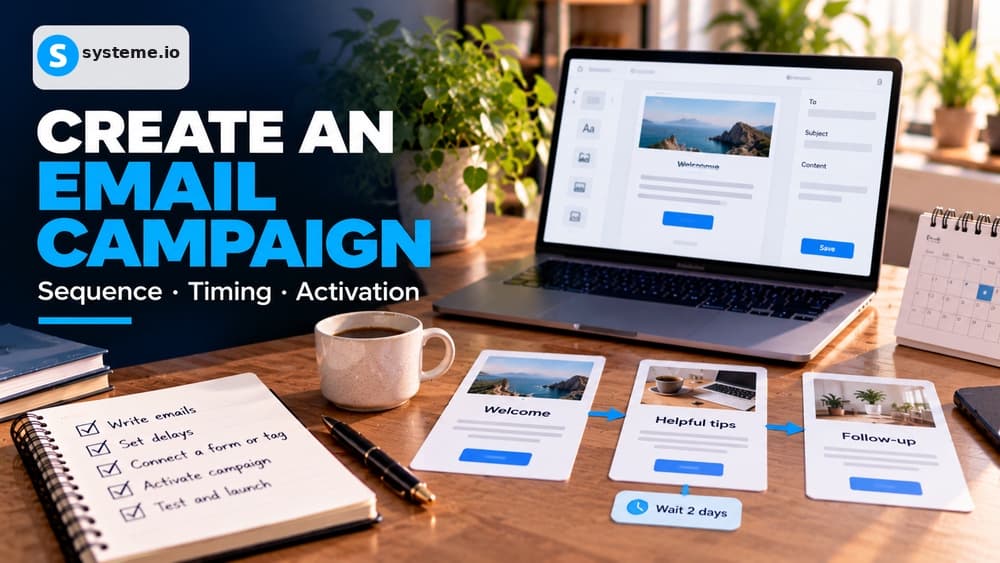
Build the campaign sequence first, set meaningful delays, then use an automation rule to subscribe the right contacts after a form, sale, tag or other appropriate trigger.
Use a campaign for a sequence that follows each contact over time
A Systeme.io campaign groups several emails that are sent according to delays you define after a contact enters the sequence. That makes campaigns suitable for welcome flows, educational sequences, onboarding, lead nurturing and timed sales follow-up.
Use a newsletter instead when the same message should reach an audience at one scheduled moment. The distinction matters because campaign timing is relative to each contact's entry, while a broadcast is tied to a calendar send time.
Build the campaign and message order before creating the automation
Open Emails and Campaigns, create a campaign with a clear operational name and add the messages in the order the subscriber should receive them. Draft the sequence around the journey rather than around an arbitrary number of emails.
Decide what the first message must accomplish, which information can wait and when a commercial offer becomes relevant. A short sequence with a clear purpose is easier to test and improve than a long campaign assembled before you know how contacts respond.
Set delays according to the job of each message rather than a fixed habit
Each campaign email can be delayed relative to the previous step. A delivery or confirmation message usually needs to arrive quickly, while an educational follow-up or sales reminder may need more time for the reader to act on what came before.
Read the sequence as a subscriber would and check whether the spacing matches the promise. Timing should support the experience; it should not exist simply because every email in an older sequence happened to be separated by one day.
Create an automation rule that subscribes the right contacts to the campaign
A campaign does not automatically receive contacts just because it exists. In Automations and Rules, choose a trigger that matches the real entry point, such as a funnel form subscription, a new sale or a tag being added, then use Subscribe to campaign as the action.
Keep the trigger as specific as the business intent. If several forms or tags can fire the same sequence, document that relationship so a later page or automation change does not start enrolling contacts who should receive a different follow-up.
Use tags and exit logic to avoid sending an outdated sales message
A prospect who becomes a customer should not necessarily continue receiving a sequence that keeps selling the product they just purchased. Tags and additional automation can help separate leads, customers and different interests so the next message still makes sense.
Keep segmentation readable and avoid creating dozens of nearly identical tags. A small naming system that explains who the contact is and what should happen next is easier to maintain than a complicated structure nobody can troubleshoot later.
Activate each email to define the actual sequence and schedule
After saving a campaign message, use its options menu to activate it. Systeme.io then lets you choose the preceding email, the waiting period and, optionally, permitted sending hours or weekdays. The delay is calculated from when the preceding email was sent, not automatically from when the contact first subscribed.
New inactive emails may appear at the top of the campaign list even though they are not yet the first chronological message. Check the real sequence after activation and avoid piling on timing, day-of-week and hour restrictions that might postpone delivery far longer than intended.
Troubleshoot messages that never arrive
Verify the full path in order: did the expected form, sale or tag-added trigger happen after the rule was set? Did the automation subscribe the contact to the correct campaign? Is the email active, and have the required delay and sending windows actually elapsed? A fully written campaign will not send on its own unless a contact is enrolled.
Use Save and test in the campaign editor to check message layout. Your test-recipient address must first be configured and confirmed in email settings. Personalization variables are not populated in test emails, so check them with a legitimate message sent to your own address. Messages inserted into an active campaign do not retroactively reach contacts who already passed that step.
Test the full sequence with a fresh address before sending acquisition traffic
Use an email address that is not already in the account, trigger the real form or event and confirm that the contact is created, subscribed to the intended campaign and receives the first message at the expected time. Open every important link rather than checking only the email preview.
Repeat the test on mobile and verify the sender identity, formatting and later steps in the sequence. A well-written campaign cannot perform if the contact never enters it, receives the wrong message or reaches a broken destination after clicking.
Check these four signals.
✓The campaign messages are in the intended order
✓Delays match the purpose of each email
✓The automation trigger enrolls only the intended contacts
✓A fresh test address receives and completes the expected sequence
The safest way to choose is to build a small real-world workflow.
Test the part of the customer journey that matters most before moving your entire system.
Official sources for this guide
Software pricing and features can change. Review the official documentation below before choosing a product or plan.