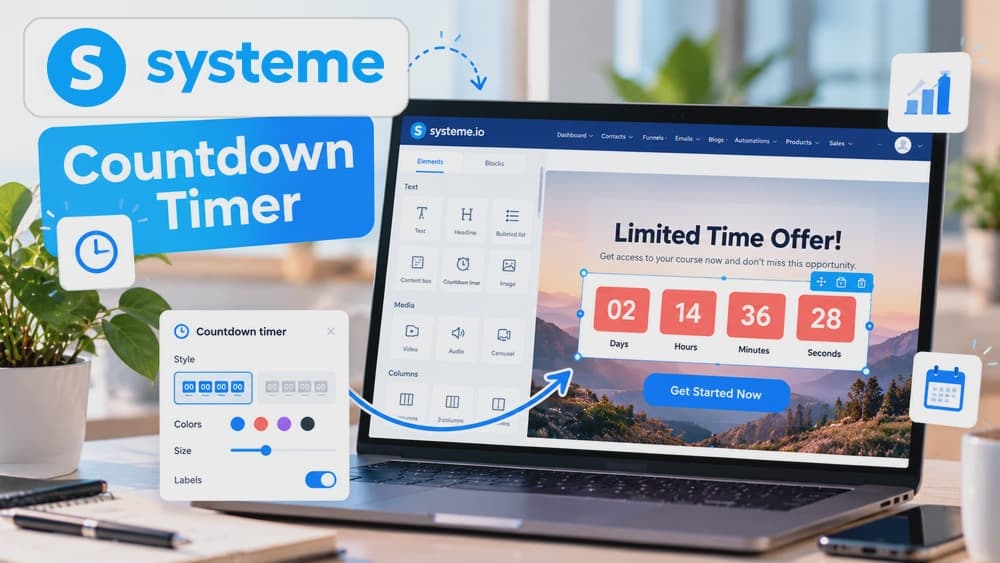
How to Add a Countdown Timer in Systeme.io in 2026
Choose a relative delay, fixed date or funnel deadline that matches a real commercial event, then define what happens at zero and test the expiration state on the live journey.
Choose the countdown logic before styling the timer on the page
A countdown only helps when the visitor can understand what genuinely changes at zero. Systeme.io supports timer configurations based on a delay or a fixed date and time, and also documents funnel-deadline behavior for specific sales journeys.
Match the timer to the offer: a launch can close for everyone at one moment, a bonus may last for a defined period, and an evergreen journey may require a deadline tied to the individual contact rather than the public calendar.
Place the countdown element next to the deadline it is meant to explain
Add the countdown element in the Systeme.io page editor and position it close to the price, bonus, enrollment notice or other message that actually expires. The timer should reinforce the commercial information rather than become an isolated visual effect.
Check the layout on smaller screens before publishing. A large timer that pushes the offer and call to action too far down the page can reduce clarity even when the deadline itself is valid.
Use a delay timer when the deadline is relative to the visitor journey
The delay countdown lets you define a duration in days, hours, minutes and seconds. It is useful when the timer should begin from a point in the visitor's or contact's journey rather than from one universal calendar date.
Configure what should happen when the timer reaches zero and test that outcome. The expiration behavior matters more than the visual countdown because an expired offer that remains fully available undermines the urgency the page communicated.
Use a fixed date when an event or promotion closes at the same time for everyone
Choose the Fixed time and date setting when enrollment or a launch offer genuinely ends at the same moment for all visitors. Align the date and the account timezone with the deadline in your emails, landing page and checkout.
Plan the experience after zero. Systeme.io's help article notes that a fixed-date countdown can leave the funnel page inactive after expiry when no redirect is configured. Choose a clear 'offer closed' destination and check it before inviting visitors: https://help.systeme.io/article/333-how-to-use-the-fixed-time-and-date-countdown-timer.
Use a funnel deadline only when the contact journey actually requires synchronization
The Same as the deadline funnel settings option syncs the countdown with the Deadline feature on Sales page and Order form steps only. The deadline is contact-specific: a six-day access period can start from each lead's registration, rather than from a single public calendar date.
The visitor must be recognized through an opt-in form connected directly or indirectly to the deadline page. The configured cutoff hour uses the account timezone, not the lead's timezone. Without a recognized subscriber, the supposedly limited page may remain available. Verify these conditions with test contacts before advertising the offer: https://help.systeme.io/article/1574-how-to-create-a-deadline-for-a-sales-funnel.
Daily countdowns are different from one-time closing dates
Systeme.io also documents a Daily countdown type, which targets a specified hour each day and can redirect or stop at zero. Use it for a genuinely recurring daily event or availability window, not as evidence that a sale ends forever if the same offer simply resets the following morning.
For one global cutoff, choose Fixed time and date; for an identified lead's personal window, use the funnel deadline where supported. Official Daily countdown instructions: https://help.systeme.io/article/344-how-to-use-the-daily-countdown.
Troubleshoot three expiry failures before sending paid traffic
Case 1: the clock hits zero but checkout stays available. Check whether you configured only the display timer or the actual Deadline restriction on an eligible funnel step. The two features are not interchangeable.
Case 2: a personal deadline does not take effect. Check the contact's opt-in path and identification before the restricted sales or order page. Case 3: the deadline expires at an unexpected local hour. Verify the account timezone rather than assuming the visitor's timezone applies. Reproduce each case with a short test deadline and a sample contact.
Worked example: a six-day bonus after joining the funnel
For a funnel with opt-in, sales and order pages, first configure the six-day Deadline, choose an honest 'bonus ended' redirect and enable the restriction only on compatible sales/order steps. Set the on-page countdown to match the funnel deadline instead of assigning the same fixed calendar date to everyone.
Register two sample leads at different moments and review each lead's final access separately. Confirm the account-timezone cutoff and post-expiration email copy. This is a practical test plan, not a claim that we personally ran a live Systeme.io campaign.
Run a short expiration test on desktop and mobile before launch
Create a test version with a very short duration, wait for the timer to expire and confirm the redirect or post-expiration state. Repeat the test in a private browser session and on a phone so cached or authenticated behavior does not hide a problem.
The final experience should keep three things aligned: the promise on the page, the time shown by the timer and what the visitor can actually do after zero. Urgency works only when all three tell the same story.
Check these four signals.
✓The timer type matches the commercial deadline
✓Timezone and date are consistent across page and emails
✓The expiration action or redirect has been tested
✓Desktop and mobile show the same valid deadline experience
Need the bigger picture before choosing a plan?
Open the current offer and check Systeme.io pricing, limits and features before deciding on a subscription.
Official sources for this guide
Software pricing and features can change. Review the official documentation below before choosing a product or plan.